AI Insights turns your account’s raw performance data into four things you can act on: a plain-language summary of what changed recently, a ranked list of specific recommendations with dollar impact, a weekly narrative report, and a free-text Q&A box for anything else you want to know.
Where to find it & plan availability
Go to Optimize → AI Insights in the left sidebar, or open /dashboard/insights directly. The page loads for anyone, but generating recommendations, the weekly report, and Ask Anything all require a PRO or ENTERPRISE plan - a lower plan sees an upgrade prompt instead when it tries to generate. Make sure an account is selected in the breadcrumb at the top; each tab’s data is scoped to one account at a time.
Step-by-step walkthrough
1. Generate Top Recommendations
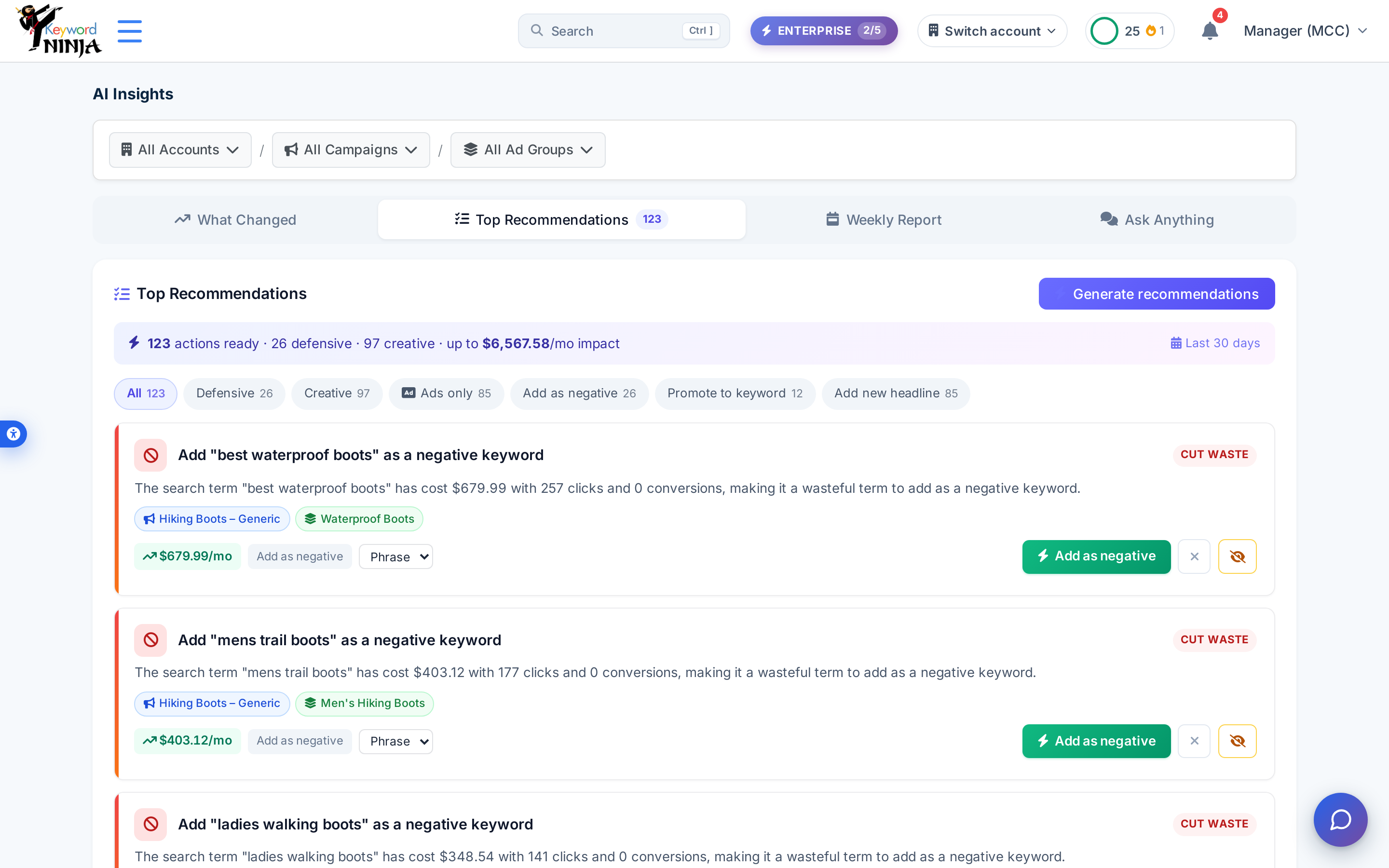
On the Top Recommendations tab, click Generate recommendations. This is the one action here that costs AI tokens - it produces a ranked list of specific fixes (add as negative, promote a search term to a keyword, write a new ad headline, and more), each with the real numbers behind it and an estimated monthly dollar impact. Filter chips at the top let you narrow to Defensive (cut waste) vs. Creative (grow), or to one action type.
2. Apply one
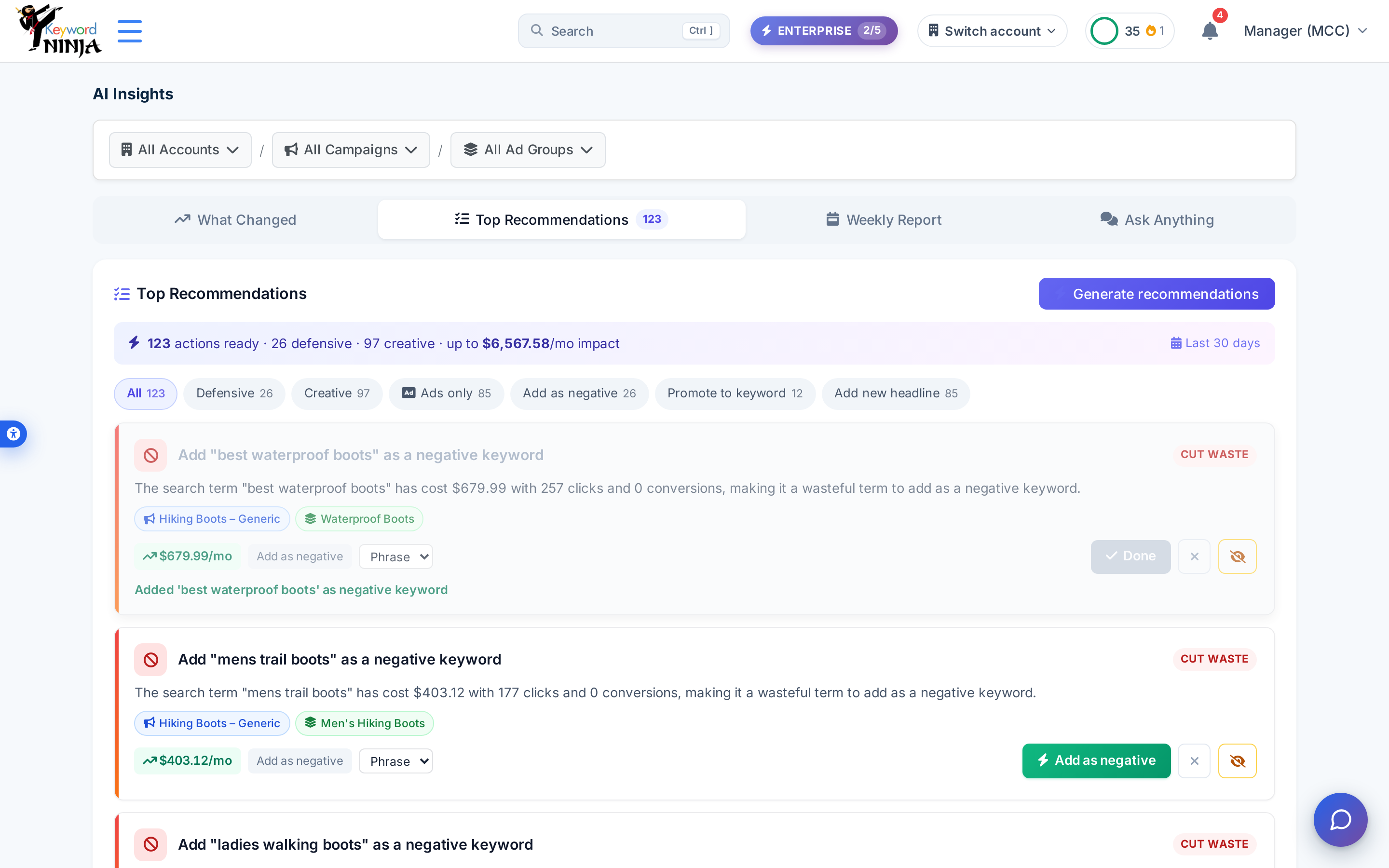
Click the action button on any card (e.g. Add as negative) to apply it immediately - no separate confirm step. The button becomes Done and a confirmation line appears under the card.
3. Generate the Weekly Report
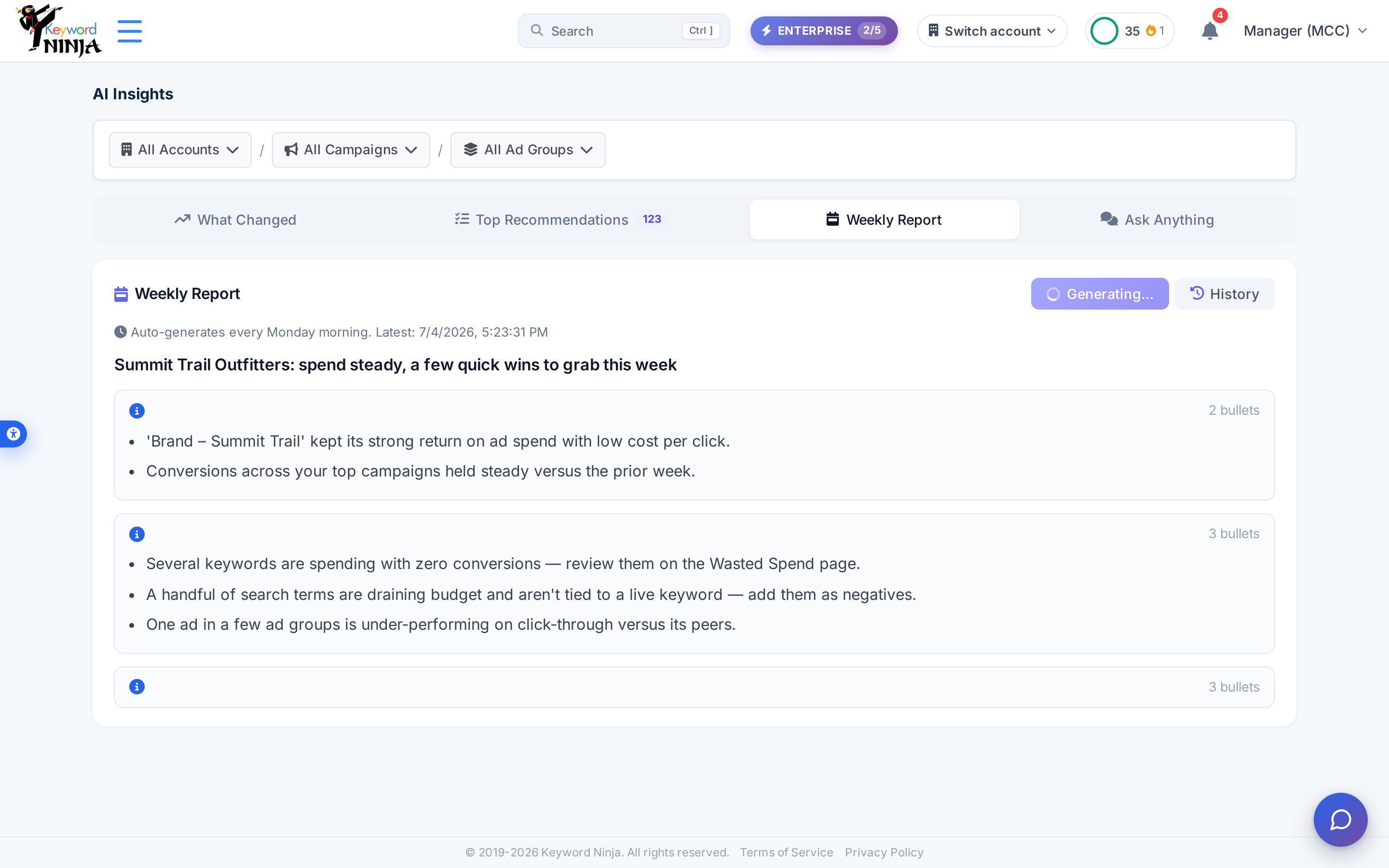
The Weekly Report tab auto-generates every Monday morning, or click Generate now to refresh it on demand. It’s a short narrative - a headline plus a handful of grouped bullet points comparing this week to last, calling out both wins and issues worth a look.
4. Ask Anything
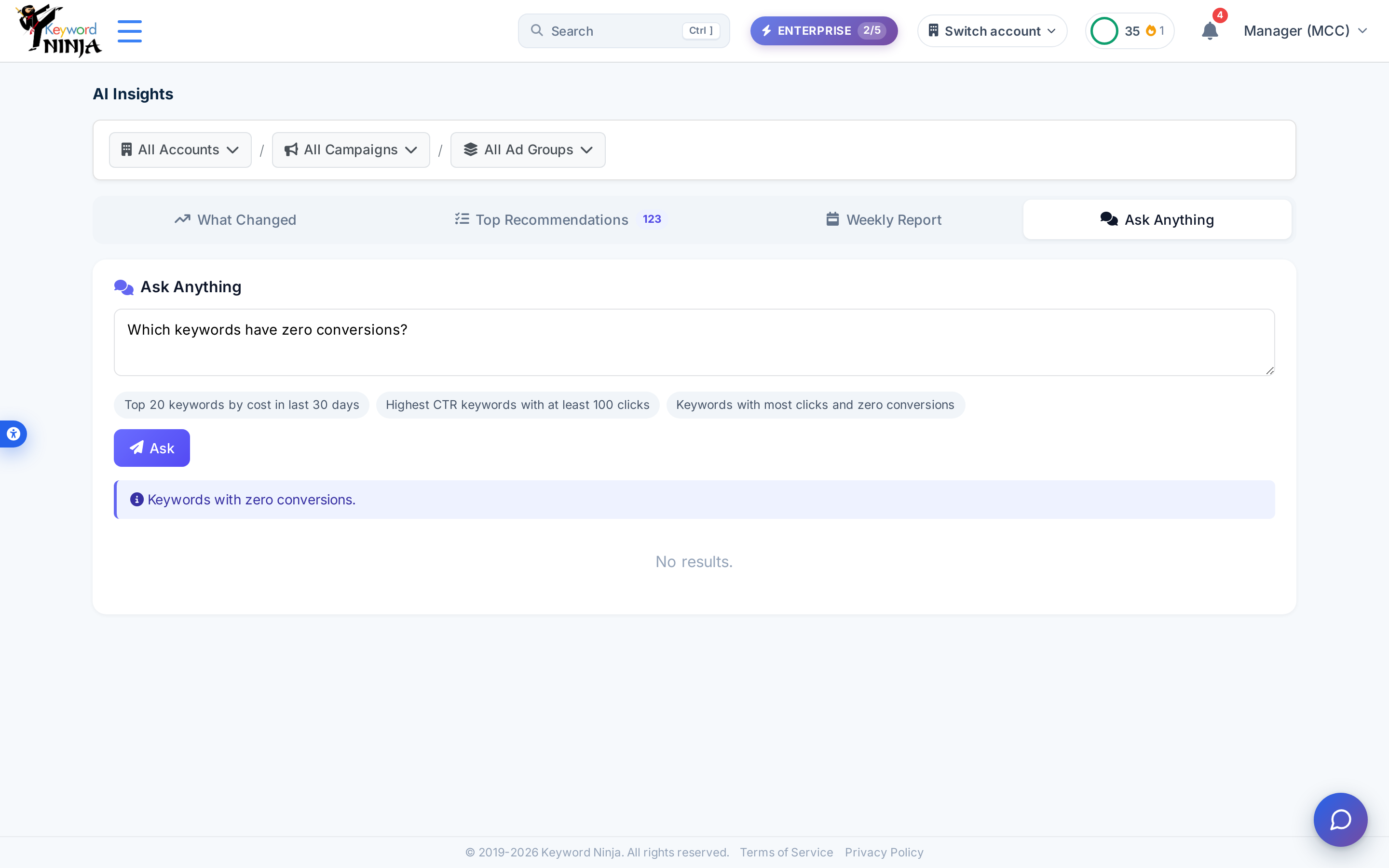
Type a plain-English question about your account - or click one of the suggested example chips - and click Ask. The answer restates what it understood as a query (metric, time window, sort order) before showing results, so you can tell whether it interpreted your question the way you meant it.
5. Check What Changed
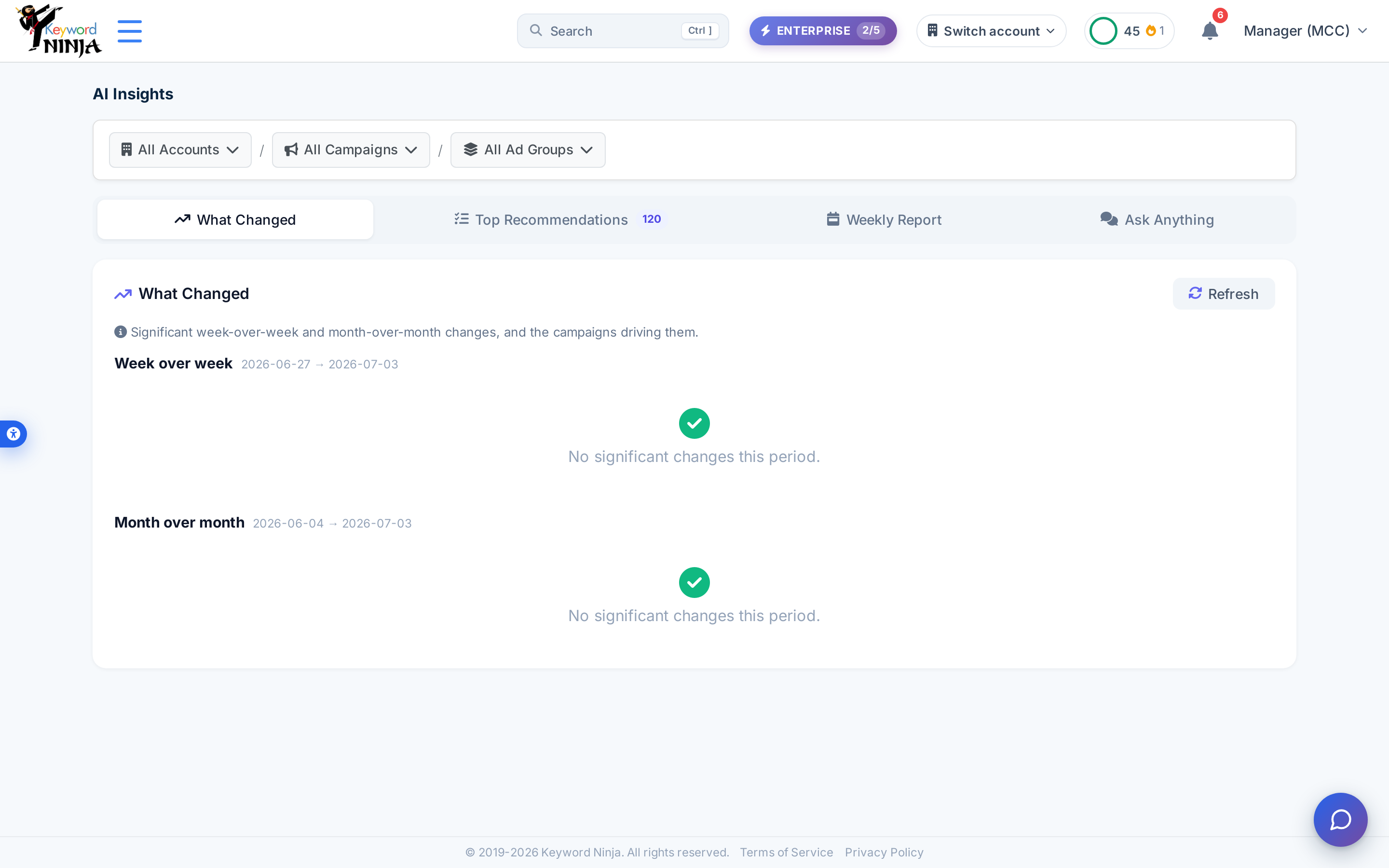
The What Changed tab is free of AI cost - it’s a pure data comparison (week-over-week and month-over-month) that flags anything significant. When nothing crossed a notable threshold, it says so plainly rather than manufacturing a finding.
Tips & best practices
- Only Generate buttons cost AI tokens - reloading the page, switching tabs, and browsing already-generated recommendations or reports use a free cached read, not a new AI call.
- Recommendation and report text is generated in English regardless of your site language - the surrounding page (tabs, filters, buttons) is fully bilingual, but the AI-written titles, rationale, and narrative bullets aren’t re-generated per language.
- Ask Anything restates its interpretation before showing results - if the restated query looks wrong (wrong metric, wrong time window), rephrase your question rather than trusting the result table.
- Applying an action here writes to Google Ads (or your account) immediately - there’s no separate dry-run step like some other pages; read the card’s evidence before clicking.
- “No significant changes” on What Changed is a real answer, not a loading state - it means nothing crossed the notability threshold for that window, which is itself useful to know.
Troubleshooting & FAQ
I see an upgrade prompt instead of a Generate button working. AI Insights generation requires PRO or ENTERPRISE; browsing is free but generating recommendations, the weekly report, or asking a question needs the plan upgrade.
I got a “daily quota reached” error. Each plan has a daily AI token budget (PRO and ENTERPRISE have different caps); it resets the next day. This is separate from your regular plan limits.
A recommendation card doesn’t have an action I expected. Recommendations only cover categories your account actually has candidates for in the current data - if nothing qualifies for a given action type in this run, it simply won’t appear.
Ask Anything says it found nothing. That’s a genuine result, not an error - try widening the question (a longer time window, a less specific filter) if you expected matches.
I want to see an older weekly report. Click History on the Weekly Report tab to browse previously generated reports for this account.