
Reviewing search terms one at a time misses the bigger picture: a word like “free,” “rental,” or a competitor’s brand name can show up across dozens of different queries, each one small on its own but adding up to real wasted spend. N-gram Analysis breaks every search term into individual words and word-pairs, rolls up performance across every term that shares each pattern, and lets you drill into and negative the whole cluster at once instead of term by term.
Where to find it & plan availability
Go to Optimize → N-gram Analysis in the left sidebar, or open /dashboard/ngram-analysis directly. The table is free on every plan. Adding a negative from this page - either one n-gram or a batch of selected search terms - only requires your workspace role to be Member or above; Viewers can browse the table but the add-negative buttons aren’t available to them. There’s no plan-tier gate here, unlike the AI-powered version of this idea on the AI Negative Themes page.
Step-by-step walkthrough
1. Scan the n-gram table
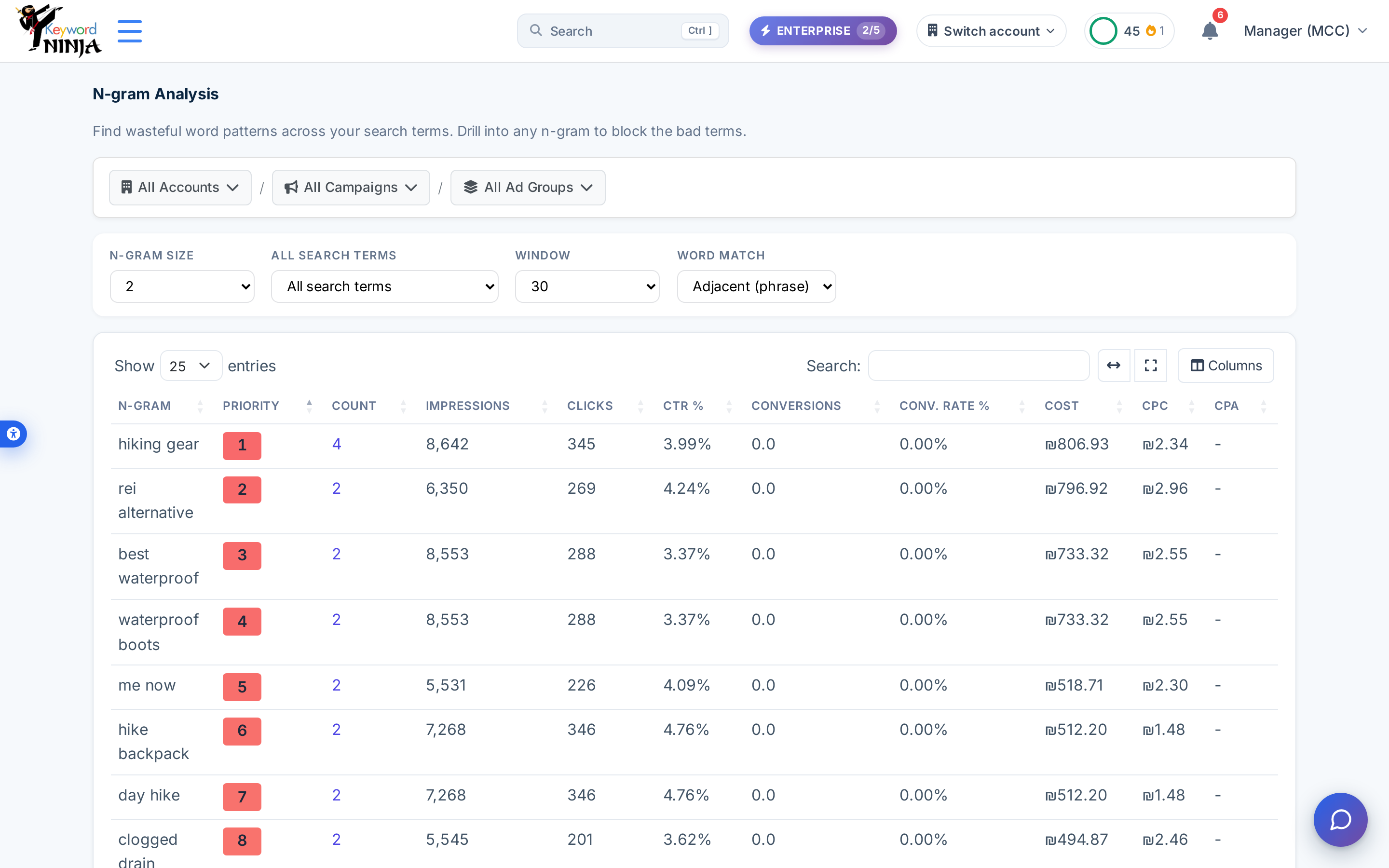
Set the breadcrumb scope, n-gram size (1, 2, or 3 words), word-match style (adjacent phrase vs. any combination of words), and the day window (default 30). Each row is one word or phrase with Impressions/Clicks/Cost/Conversions/Conv. Rate/CPC/CPA aggregated across every search term that contains it, ranked by a Priority score that weighs both cost and how often the pattern recurs - not cost alone.
2. Drill into the search terms behind a pattern
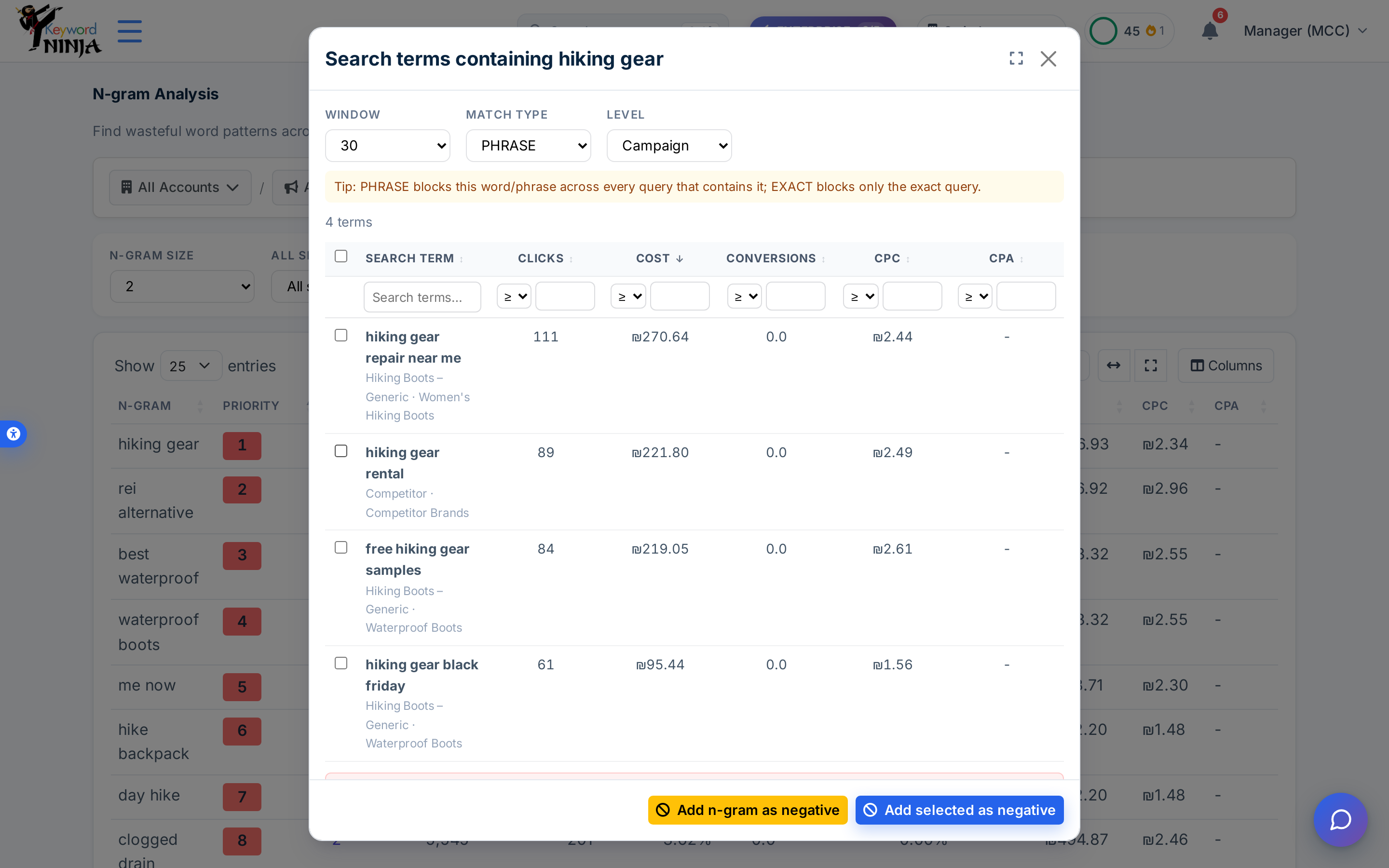
Click the count link on any row to open every underlying search term that contains the n-gram, along with the campaign and ad group each one belongs to. This is also where you pick the match type (EXACT or PHRASE) and the level (campaign or ad group) to apply before adding anything.
3. Add one term or a batch as negatives
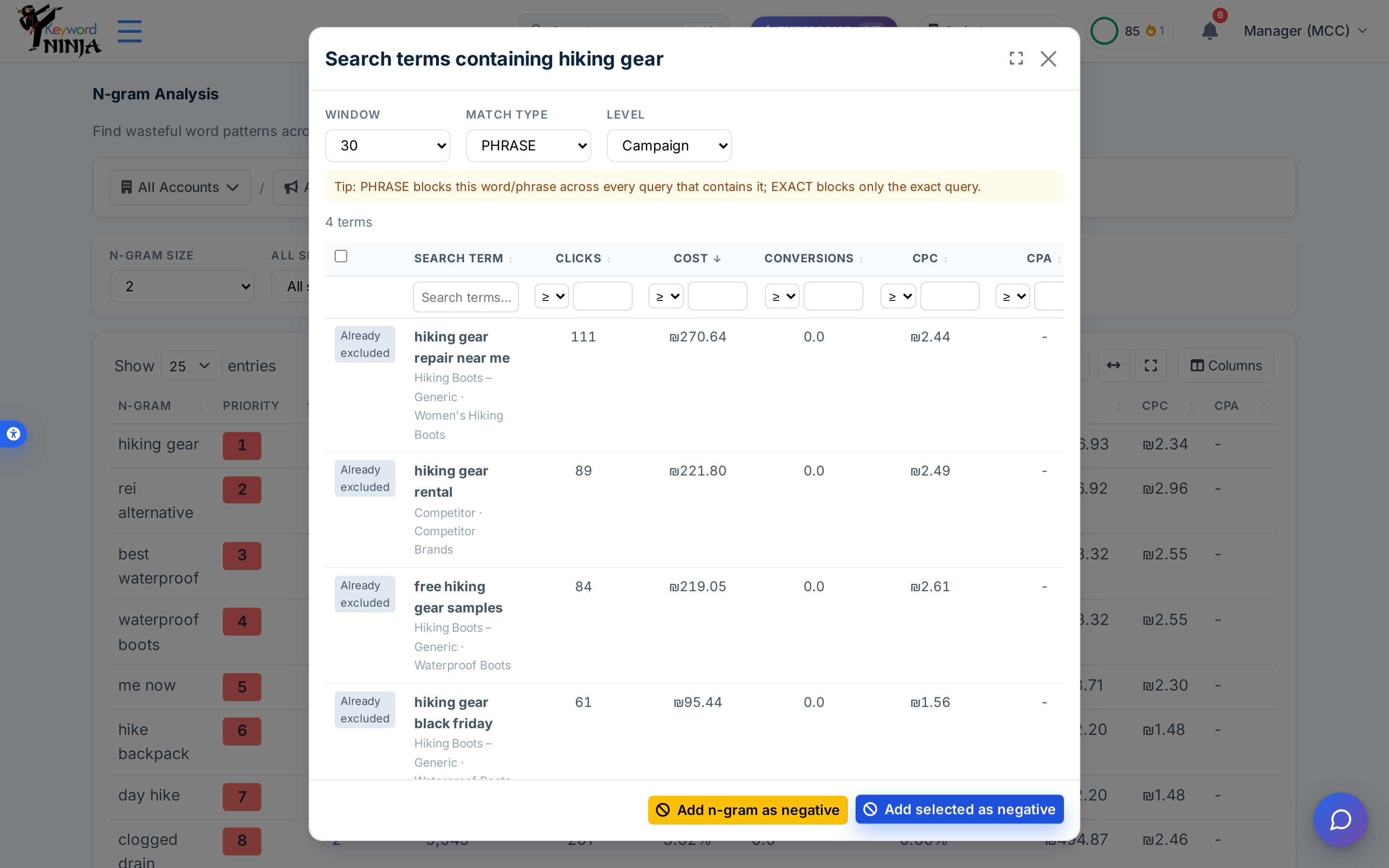
Use Add n-gram as negative to block the whole word pattern in a single action at your chosen match type and level, or check individual rows and use Add selected as negative to be more surgical about which underlying terms get blocked. Rows that are already blocked show an “Already excluded” badge so you don’t add the same term twice.
Tips & best practices
- 2-word n-grams are usually the sweet spot. Single words can be too broad (blocking “free” might catch legitimate phrasing you didn’t intend), while 3-word phrases tend to be too specific to matter much in aggregate. Start at size 2 and widen or narrow from there.
- Read the PHRASE-vs-EXACT tip banner before picking a match type. PHRASE blocks the word/phrase across every query that contains it; EXACT only blocks the exact query - the same distinction that governs negative keywords everywhere else in the product.
- Priority isn’t just cost-sorted. A pattern that recurs across many distinct search terms can rank above a single expensive term, because a negative there recovers spend from the whole cluster at once.
- This is role-gated, not plan-gated. Any workspace Member or above can add negatives here on any plan. If you’re delegating this broadly, keep an eye on the Activity Log page to review what got added.
- Pair it with AI Negative Themes. That page has AI pre-screen your zero-conversion search terms and suggest specific n-grams it judged safe to block; this page is where you look up that exact term and actually apply it.
Troubleshooting & FAQ
The table is empty or has very few rows. Try a wider day window, a smaller n-gram size, or a broader breadcrumb scope - a single campaign with light traffic may not have enough repeating word patterns to surface anything.
I don’t see “Add n-gram as negative” or “Add selected as negative” anywhere. Those buttons are hidden for the Viewer workspace role. Ask a workspace Owner or Admin to change your role if you need to act on this page.
A term already shows “Already excluded.” It’s already a negative keyword at some level - adding it again is a no-op the page prevents rather than a bug.
Why doesn’t this page have a day-range picker like other pages? It does - the Window control in both the main filters and the term-drill-down modal sets the lookback for that view; there’s just no custom date-range picker beyond the preset windows.