
Average performance hides a lot: a campaign that looks fine overall can be quietly burning real money at 2am every night while its 11am slot converts at 10x ROAS. The Dayparting Heatmap lays every hour of every day out as a color-coded grid so the pattern is visible at a glance, then - on PRO and above - turns the worst and best slots into one-click ad-schedule changes.
Where to find it & plan availability
Go to Optimize → Heatmap in the left sidebar, or open /dashboard/heatmap directly. The grid itself is free on every plan. The Recommendations panel below it requires a plan with the automations feature (PRO/ENTERPRISE); on a lower plan you’ll see an upgrade prompt there instead of rows. Applying a recommendation additionally requires your workspace role to be Member or above.
Step-by-step walkthrough
1. Read the grid
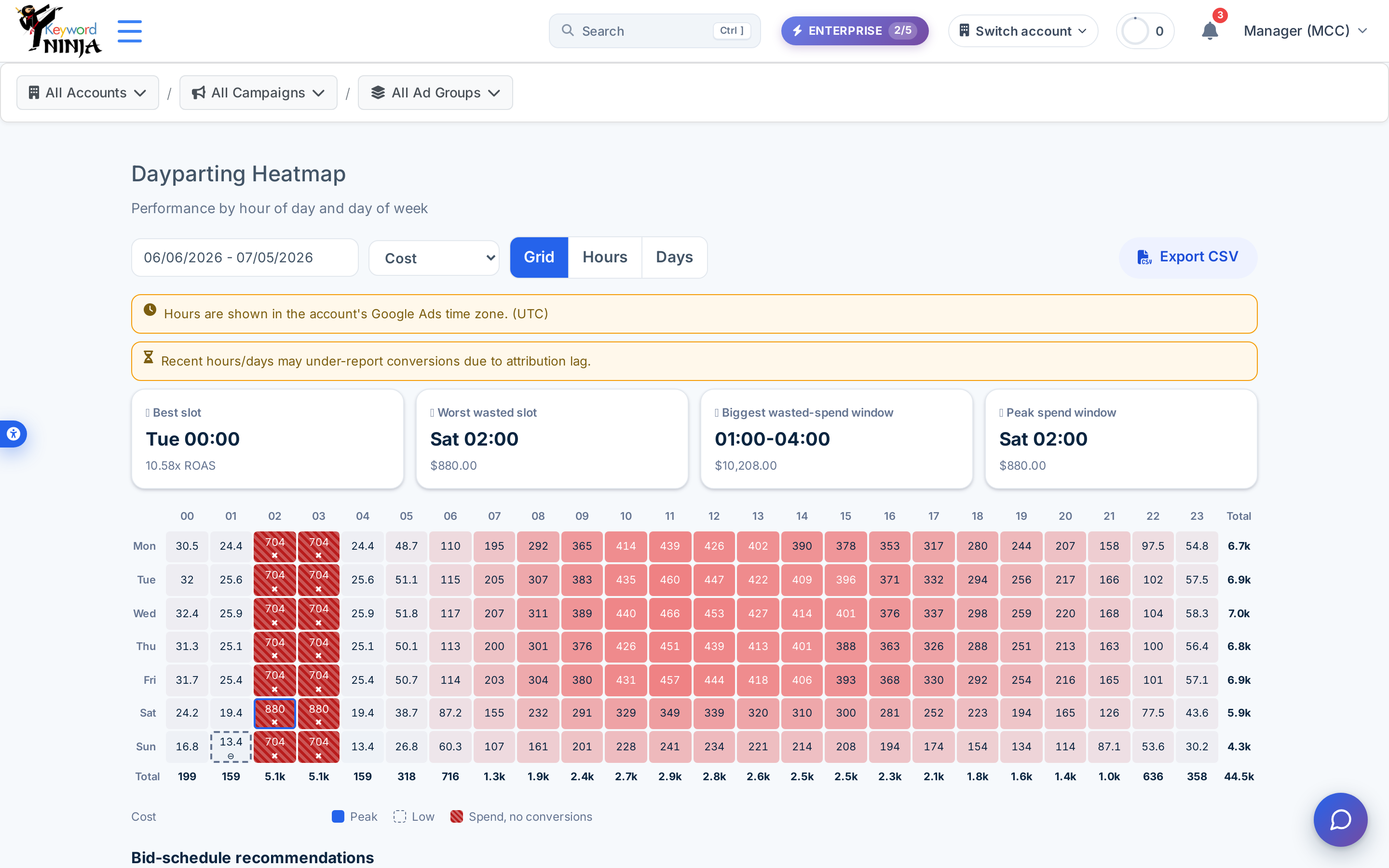
Each cell is one hour x day-of-week combination, shaded by whichever metric you pick (Cost by default - Clicks, Conversions, CTR, CPA, and ROAS are also available). A red slashed-circle icon marks a genuinely wasted cell (real spend, zero conversions); the insight cards above the grid call out the single best slot, worst wasted slot, biggest wasted-spend window, and peak-spend window automatically. Switch to the Hours or Days view for a simpler bar-chart rollup, or Export CSV for the raw numbers.
2. Review the recommendations panel (PRO+)
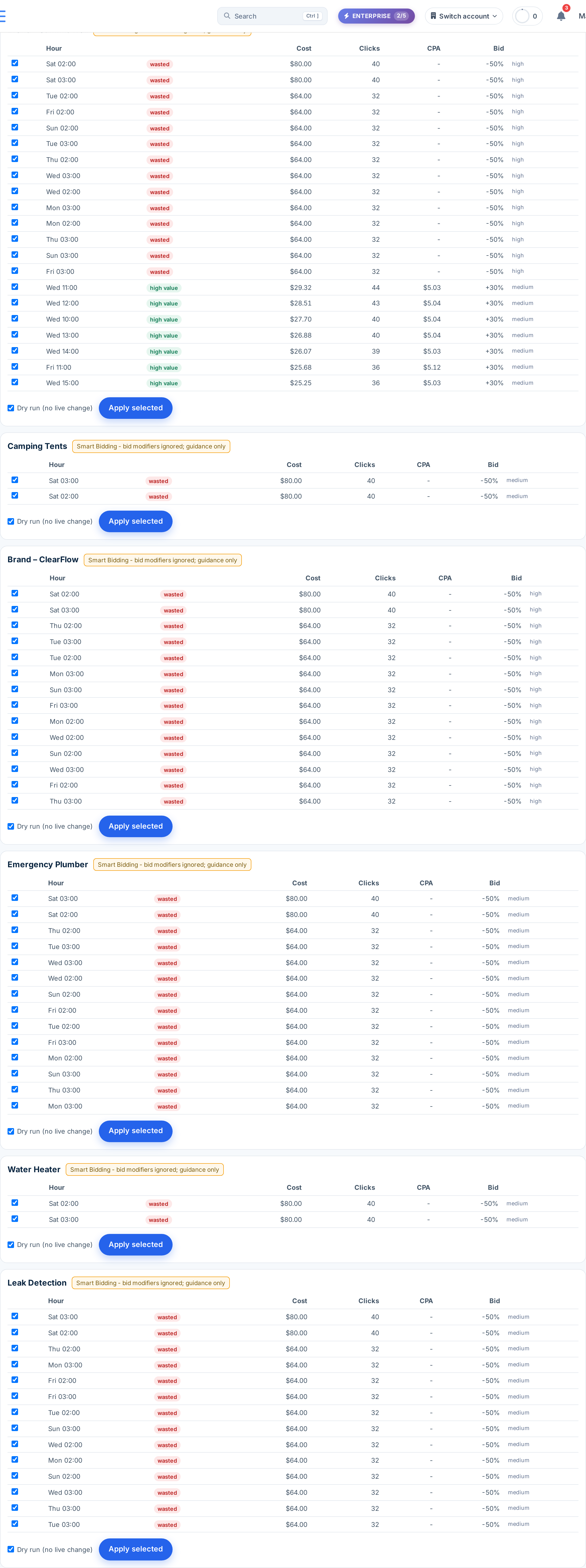
Below the grid, each campaign with enough data gets its own card listing specific wasted-hour and high-value-hour candidates, with a suggested bid modifier (e.g. -50% for a wasted slot, +30% for a high-value one) and a confidence level. Campaigns on Smart Bidding (Target CPA/ROAS, Maximize Conversions/Value) get a “Smart Bidding - bid modifiers ignored; guidance only” badge, since those strategies ignore ad-schedule bid modifiers.
3. Select slots and apply
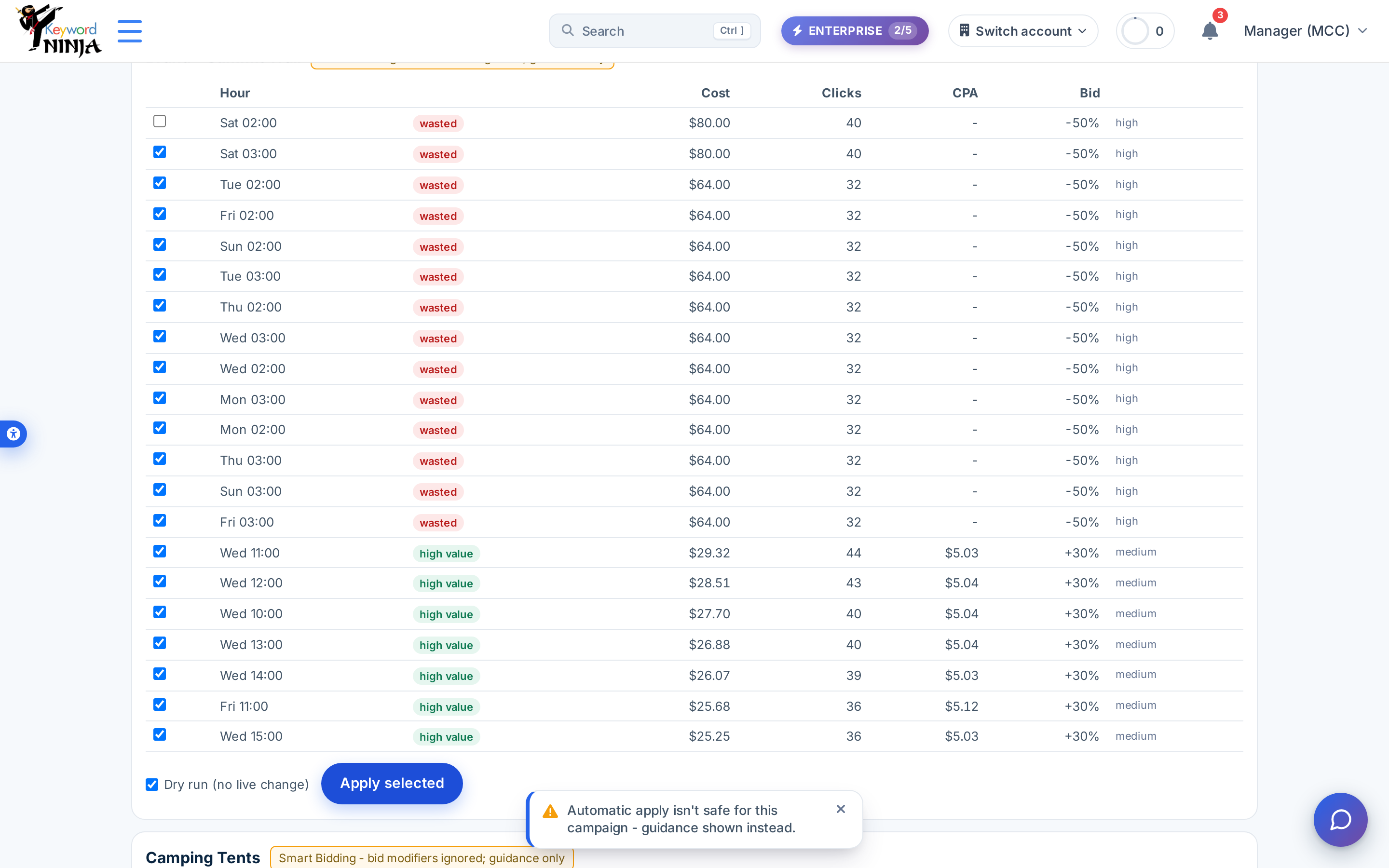
Check the slots you want to act on and click Apply selected. With Dry run checked (the default) nothing is written to Google Ads - you get a preview. Uncheck it and confirm to write a real ad schedule. On a Smart Bidding campaign (or one that already has an ad schedule, or where a selected modifier would need an exclusion below -90%) you’ll get a guidance toast instead of a live change - the safe fallback for cases the automatic path can’t handle.
Tips & best practices
- Applying writes a full week, not just the hours you checked. Google Ads ad schedules are all-or-nothing per campaign, so Apply synthesizes a complete 24/7 schedule - every hour you didn’t select gets a neutral (no-change) modifier, and adjacent same-modifier hours are merged to keep the entry count down.
- Undo is real and available from the Activity Log, not from this page - go to
/dashboard/activityto find the applied change and reverse it. Undo removes the ad-schedule criteria it added (restoring 24/7 serving) and reverses the associated savings record. - A guidance-only badge is a safety feature, not a bug. Most real accounts run at least some campaigns on Smart Bidding, where Google’s algorithm already accounts for time-of-day signals internally - forcing a manual bid modifier on top would fight the algorithm rather than help it.
- Recommendations need enough statistical signal to appear, not just a bad-looking cell. A hardcoded confidence check (not exposed in the UI) requires enough clicks that a zero-conversion result is unlikely to be noise - an hour with just 2-3 clicks and no conversions won’t necessarily generate a recommendation.
- The grid and the recommendations panel share the same underlying data (
CampaignHourlyData, refreshed a few times a day), so a change you make from the recommendations panel will show up back in the grid on your next visit. - The “wasted”/”underperforming”/”high value” chip labels stay in English regardless of site language. The rest of the page - headers, buttons, toasts, guidance text - is fully bilingual, but this one chip label isn’t wired to a translation key yet.
Troubleshooting & FAQ
I don’t see a Recommendations section at all, just an upgrade message. This panel requires a PRO or ENTERPRISE plan; the grid above it stays free and fully functional regardless.
Every campaign shows the Smart Bidding guidance badge. That’s expected if your account leans on automated bidding strategies - use the guidance shown (manual steps) instead of the one-click Apply for those campaigns.
I applied a change and want to undo it. Go to /dashboard/activity, find the entry, and use its undo action - it restores the campaign to unrestricted 24/7 serving.
The grid looks empty or sparse for a newly connected account. The heatmap depends on CampaignHourlyData, which backfills roughly the last 90 days on first sync and then refreshes incrementally - give a brand-new account a sync cycle or two before expecting a full grid.