
Every pause, budget bump, added negative, and automation run changes something real in your account - and normally you’d have no single place to see all of it together, let alone reverse a mistake or check whether a change actually helped. The Change Log merges your manual edits and every automation run into one timeline, with one-click undo and a genuine before/after performance comparison for any entry.
Where to find it & plan availability
Go to Optimize → Change Log in the left sidebar (last item in the Optimize menu), or open /dashboard/activity directly. Viewing the full timeline and opening Impact is free on every plan and role. Undoing a change requires your workspace role to be Member or above - Viewers can see everything but can’t reverse anything.
Step-by-step walkthrough
1. Scan the stats tiles and filter chips
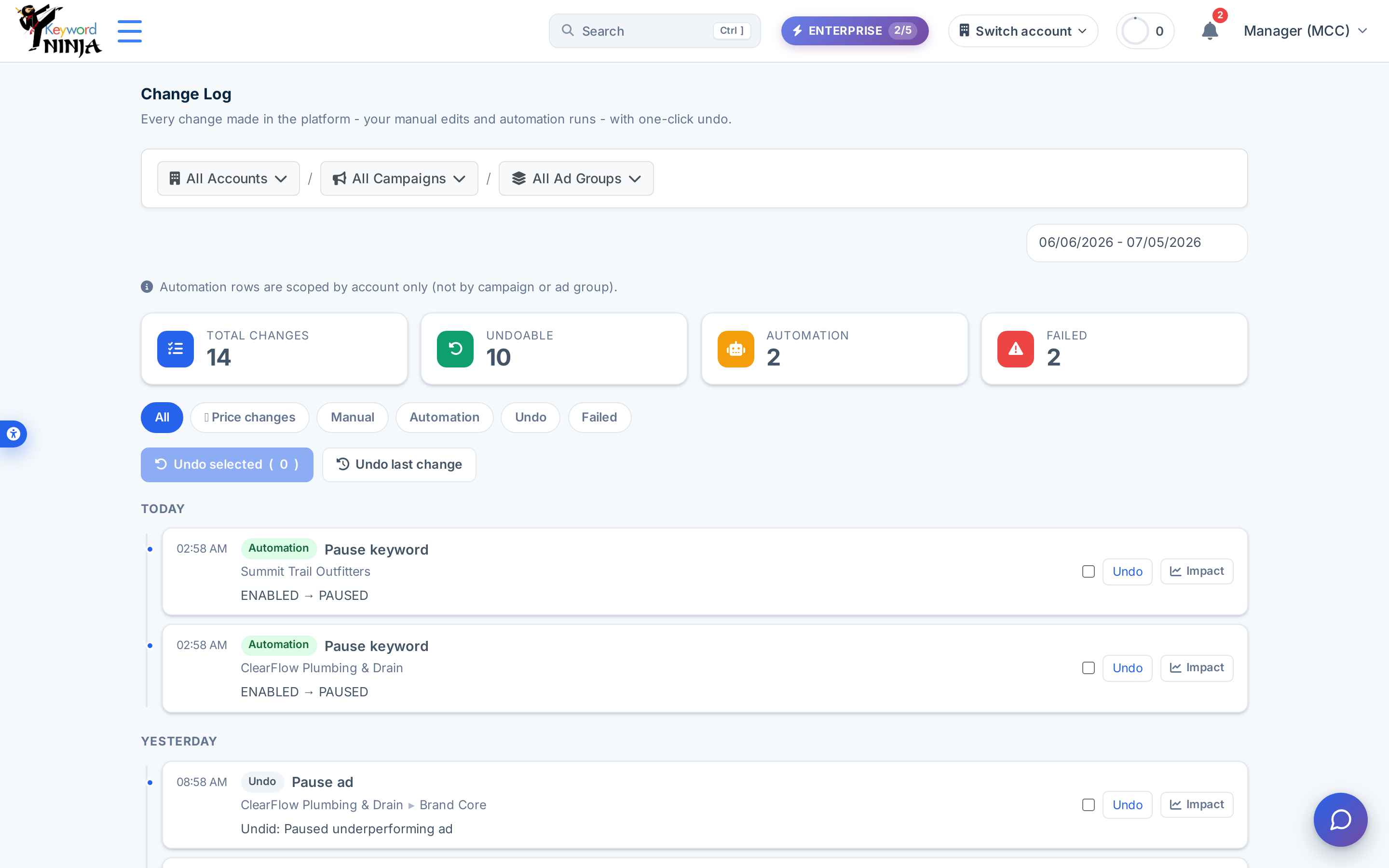
The four tiles at the top summarize the scoped window: total changes, how many are still undoable, how many came from automation rules, and how many failed. Use the chips below - All, Price changes, Manual, Automation, Undo, Failed - to narrow the timeline to exactly the kind of entry you’re looking for.
2. Undo a change, one at a time or in bulk
Every reversible row has its own Undo button; check several rows’ boxes and use Undo selected to reverse a batch at once (each item commits independently, so one failure doesn’t block the rest), or use Undo last change as a quick single-click safety net. Rows that aren’t reversible - or have already been undone or failed - show that state instead of a live button.
3. Check the real impact before (or after) you undo
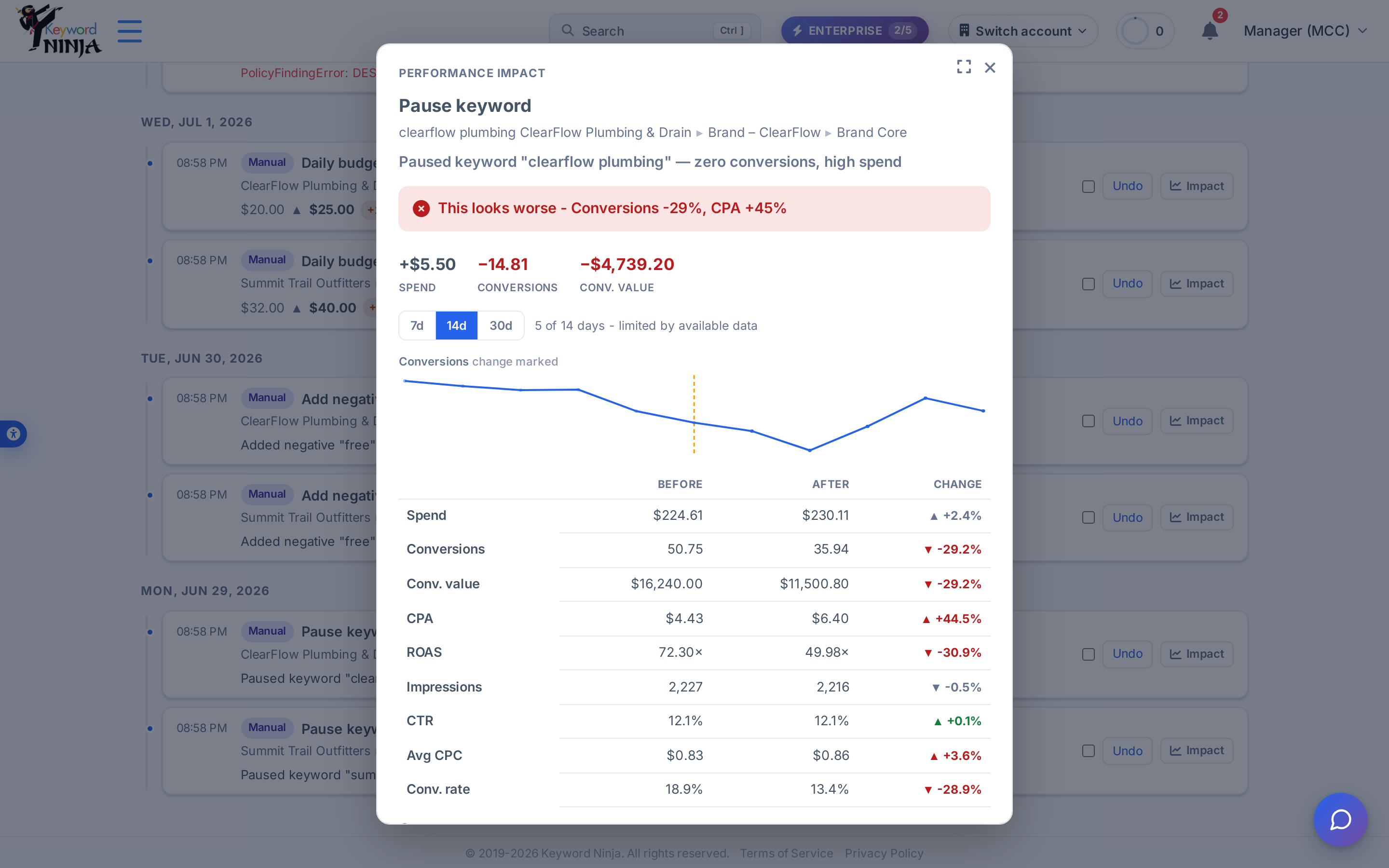
Click Impact on any eligible row to open a before/after comparison: cost, conversions, conversion value, CPA, ROAS, CTR, and more, compared for equal windows immediately before and after the change, with a plain-language verdict (“This looks worse,” “This looks like a win,” etc.) and a sparkline marking the exact change date.
Tips & best practices
- Automation rows are scoped by account only, not by campaign or ad group - if you’ve narrowed the breadcrumb to a specific campaign, automation entries for that account will still appear regardless, since automation runs aren’t tracked at that granularity.
- The Impact window automatically shrinks to fit available data. If a change happened only a few days ago, the modal compares however many days actually exist on each side rather than blocking you until a full 7/14/30-day window has passed - watch for the “X of Y days - limited by available data” note.
- Undo reverses the underlying action for real - removing a negative that was added, restoring a paused keyword to enabled, reverting a budget change - not just deleting the log row. A paired “Undo” entry is added to the timeline itself, so the reversal is visible and auditable too.
- A failed entry was never undoable to begin with. If an action failed (a policy violation, an API error), there’s nothing to reverse - the row just documents the attempt and the error.
- Action names and change descriptions stay in English regardless of site language. The surrounding chrome - stats tiles, filter chips, table headers, the Impact modal’s verdict text - is fully bilingual, but the specific action label (e.g. “Pause keyword”) and free-text description on each row aren’t translated - confirmed live on the Hebrew screenshots above.
Troubleshooting & FAQ
I don’t see an Undo button on a row. Either the action type isn’t in the reversible set (a plan/bidding-strategy read, for instance), it already has an “Undone” state, or it failed outright - only successful, not-yet-undone, reversible actions get a live Undo button.
Impact shows “too recent” instead of a comparison. The change needs at least one day of data on both sides to compare anything; a change from earlier today (or one where the entity has no prior history) can’t produce a before/after yet.
I don’t have an Undo button anywhere on the page. Undoing requires your workspace role to be Member or above; ask a workspace Owner or Admin to change your role if you need to reverse a change.
Can I undo an automation rule’s entire run at once? Undo operates per entry, and the bulk selector lets you check every row from one run and undo them together in a single batch action - there’s no single “undo this whole run” button, but selecting all its rows achieves the same result.