
Every Keyword Ninja account has a workspace behind it - a shared tenant that lets you invite teammates or an agency contact to collaborate on your Google Ads accounts without ever sharing your Google login. Each person gets their own login and a role that controls exactly what they can see and do.
Where to find it & plan availability
Go to your account menu and open Team (/dashboard/team). Unlike most PRO-gated features, Team is available on every plan - the only limit is how many seats your plan includes (active members plus pending invites count against the cap). If you try to invite past your seat limit, you’ll get an inline error explaining how many seats your plan includes rather than a silent failure.
Step-by-step walkthrough
1. See your workspace
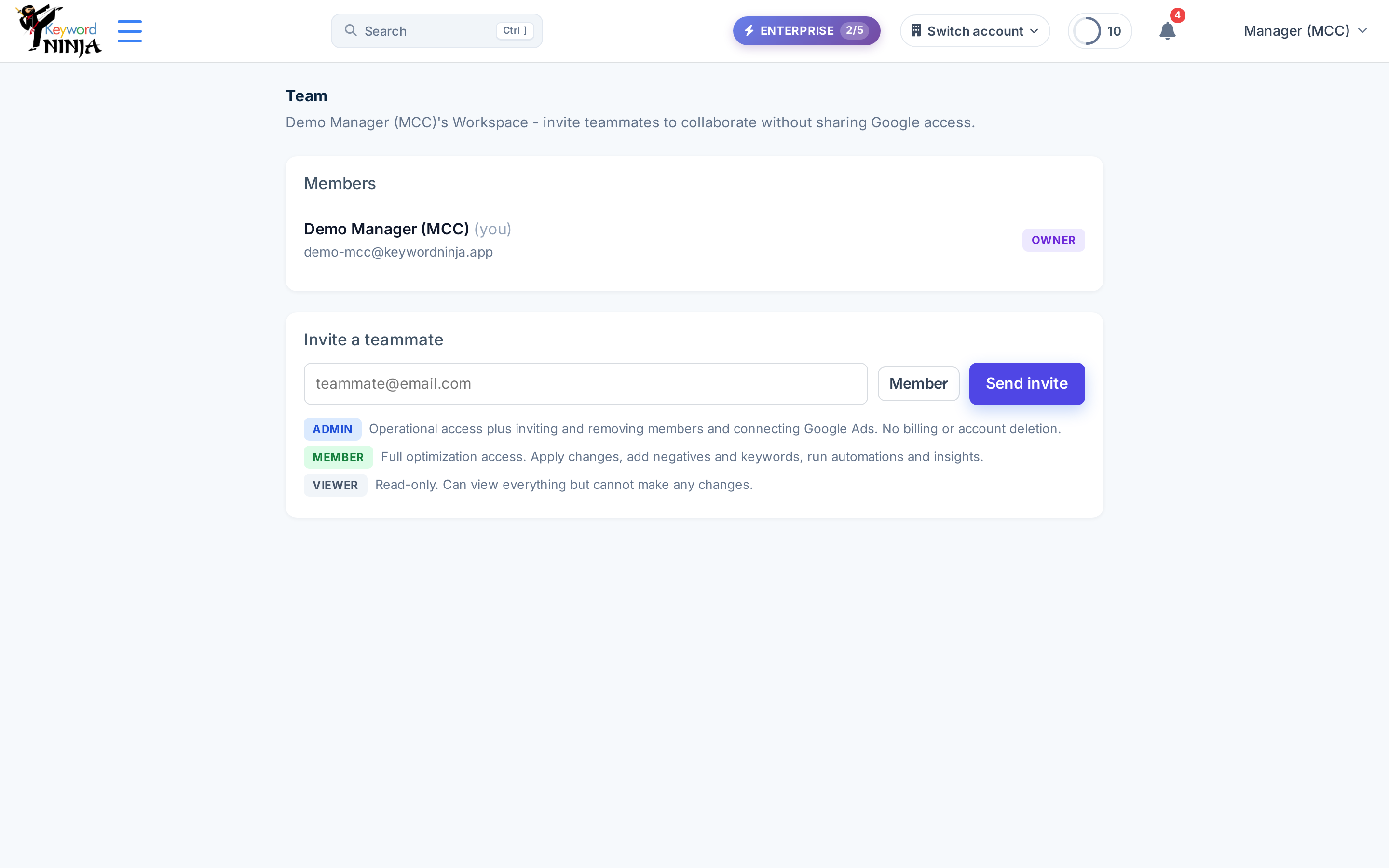
The Members card lists everyone with active access - your own row is tagged (you), and everyone’s role shows as a colored badge. As the workspace owner, you’re always listed first and can never be removed.
2. Understand the four roles
- Owner - full control: billing, connecting/disconnecting Google Ads, inviting or removing anyone (including admins), and transferring or deleting the workspace. There’s exactly one owner per workspace, and the role can’t be reassigned via invite.
- Admin - operational access plus inviting and removing members and connecting Google Ads. No billing access, no account deletion.
- Member - full optimization access: apply queue changes, add negatives and keywords, run automations and insights. Cannot invite or remove people.
- Viewer - read-only. Can see everything but cannot make any changes anywhere in the product.
Only Admins and Owners can invite or remove people; only the Owner can change anyone’s role.
3. Invite a teammate
Enter their email, pick a role (Admin, Member, or Viewer - never Owner), and click Send invite. They’ll get an email invitation; once they accept while logged into their own Keyword Ninja account, they join your workspace with the role you picked.
4. Manage pending invites
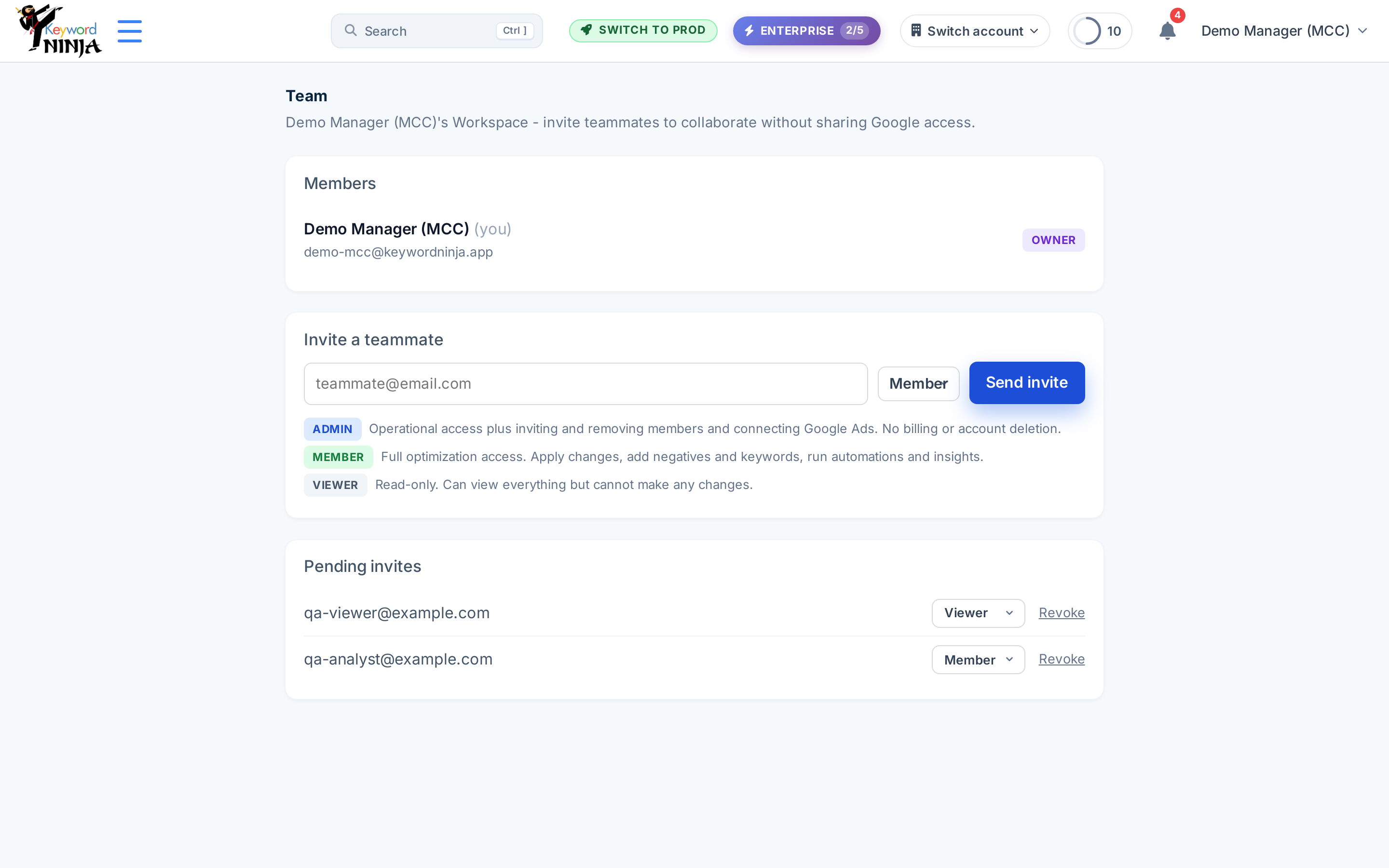
Invited-but-not-yet-accepted teammates show up in Pending invites, each with its role and a Revoke button. As the Owner, you can also change a pending invite’s role before it’s accepted.
Tips & best practices
- Give the narrowest role that gets the job done. Start teammates as Viewer or Member and promote to Admin only if they need to manage the team themselves or reconnect Google Ads.
- Removing a member automatically revokes any of their pending invites too - so you don’t have to worry about a stale invite link letting someone back in after you’ve removed them.
- A downgraded plan pauses members over your new seat limit rather than deleting them - a manager can restore a paused member once you’re back under the cap or upgrade again.
- Re-inviting the same pending email just refreshes it - no need to revoke and re-send if you want to extend or resend an invite.
- Invites are matched by email, alias tricks included - a Gmail address with dots or a “+” suffix is recognized as the same inbox, so someone can’t dodge an already-active-member check by tweaking their address.
Troubleshooting & FAQ
I don’t see an Invite form. Only Admins and the Owner can invite - if you’re a Member or Viewer, you’ll see the Members list but not the invite controls.
My invite says a seat limit was reached. Your plan has a fixed number of member seats (active members + pending invites count together); upgrade your plan or free a seat (remove a member or revoke a stale invite) before inviting again.
Some page text shows in English even though I’m using the Hebrew site. The page’s headings and button labels (“Team”, “Members”, “Invite a teammate”, “Send invite”, “Pending invites”, “Revoke”) aren’t localized yet and always show in English, while the role descriptions and other text are fully translated - a known content gap, not a bug.
A teammate I invited says the invite link doesn’t work for them. Invite acceptance requires logging in with the exact email address the invite was sent to - if they’re logged into a different account, they’ll see a mismatch message instead of joining.
I want to change someone’s role after they’ve joined. Only the workspace Owner can change an active member’s role, from that member’s row in the Members card.