Adding negative keywords one search term at a time is slow, and it’s easy to miss the pattern connecting several wasteful terms. AI Negative Themes looks at your zero-conversion search terms, breaks them into common words and phrases, and asks AI to flag which of those are clearly low-intent or irrelevant - so one negative can cut off a whole cluster of money-burning searches at once.
Where to find it & plan availability
Go to Optimize → AI Negatives in the left sidebar, or open /dashboard/negative-themes directly. The page loads for anyone, but clicking Find themes requires a plan that includes AI n-gram analysis - on a lower plan you’ll see a message instead of results.
Step-by-step walkthrough
1. Click Find themes
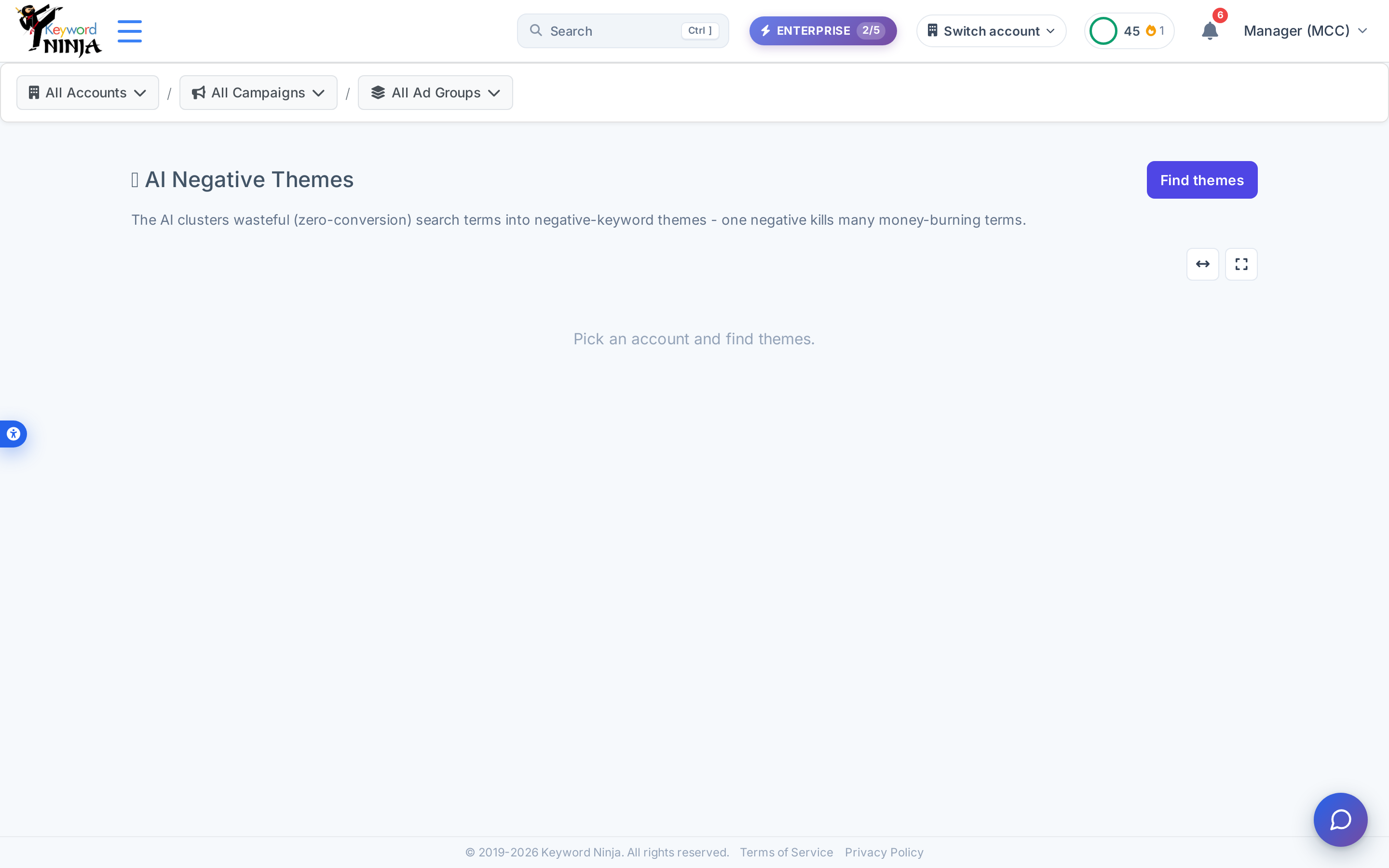
Pick a scope in the breadcrumb (or leave it at all accounts) and click Find themes. This is a deliberate, one-time AI call - it isn’t triggered automatically on page load, so browsing back to this page later won’t re-run it or re-cost tokens until you click again.
2. Read the results table
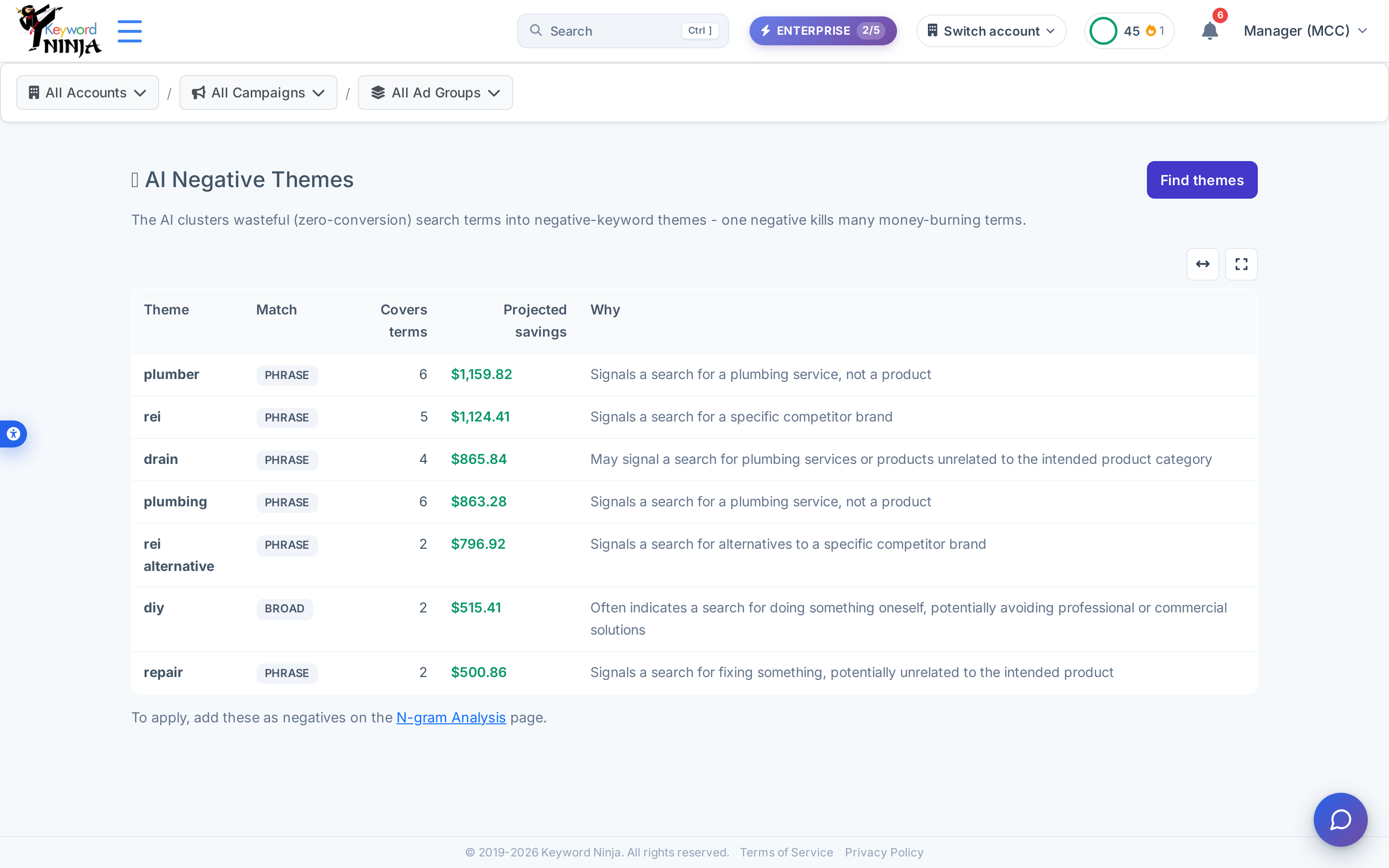
Each row is one AI-selected word or phrase, not a whole cluster label - “theme” here means a specific n-gram the AI judged safe to negative, along with its suggested match type, how many of your actual search terms it covers, the cost it would have recovered, and a plain-language reason.
3. Apply it on N-gram Analysis
This page is read-only by design - there’s no Add-negative button here. Click the N-gram Analysis link at the bottom of the results to go apply the recommended term: find it in that page’s table, open its term drill-down, choose a match type and level (campaign or ad group), and add it as a negative from there.
Tips & best practices
- The AI is deliberately conservative - it’s instructed to skip ambiguous terms that could be legitimate buyer intent (a plain product-category search, for instance) even if they’d otherwise qualify by cost and frequency. If a term you expected isn’t listed, that’s usually why.
- “No clear junk themes found” is a real, valid result - it means the AI didn’t find a pattern confident enough to recommend, not that the analysis failed. Accounts with more ambiguous search traffic (service categories, “near me” searches) will legitimately produce fewer or no themes some runs.
- The rationale text is generated in English regardless of your site language - the page around it is fully bilingual, but the AI’s “why” explanations for each theme aren’t re-generated per language.
- This only looks at zero-conversion search terms from the last 30 days - there’s no day-range picker on this page; if you want a different window, use the Negative Keyword Candidates category on the Wasted Spend page instead, which is configurable.
- A high “covers terms” count is often the best signal - a theme that recurs across many distinct search terms is usually a safer, higher-confidence negative than one backed by just one or two.
Troubleshooting & FAQ
I clicked Find themes and got an error/upgrade message instead of results. This feature requires a plan that includes AI n-gram analysis; the message explains whether it’s a plan limit or a temporary issue (like a daily AI budget being reached).
The table only has a couple of rows, or none at all. That’s expected for accounts whose zero-conversion search terms don’t cluster into a clear, confident pattern - the AI would rather return fewer recommendations than a wrong one.
I don’t see an “Add as negative” button anywhere on this page. That’s intentional - this page only identifies candidates. Apply them from the N-gram Analysis page, linked at the bottom of the results.
Running Find themes again returns different results. The underlying search-term data and the AI’s judgment can both shift slightly run to run; re-running is safe (it’s a fresh read-only analysis, not a repeated action).