
Google Ads tells you what happened up to the click - impressions, cost, clicks. The GA4 integration adds what happens after it: did people actually engage with your site, convert, or bounce straight off it. It’s a genuinely different lens from anything else in Keyword Ninja, and it powers one feature worth knowing about even if you skip everything else - the Tracking Health Monitor, which catches a dead or broken conversion tag before it quietly blinds your Smart Bidding for weeks.
Where to find it & plan availability
Once connected, two pages appear in the sidebar: Navigate → Analytics (GA4) (/dashboard/ga4) for the overview, and Optimize & Automate → Find waste → Post-Click (GA4) (/dashboard/post-click) for the verdict breakdown by campaign, ad group, and keyword. There’s also a GA4 card in Settings.
Both pages are free on every plan - Free, Basic, Pro, and Enterprise all include the GA4 integration. Connecting (or reconnecting) requires an OWNER or ADMIN role; anyone in the workspace can view the pages once it’s connected.
Step-by-step walkthrough
1. Connect Google Analytics
From /dashboard/ga4 (or the Settings card), click Connect Google Analytics. This opens a separate, read-only Google consent screen for Analytics data - it never touches your Google Ads login. You can connect a different Google account than the one you used for Ads if your analytics access lives elsewhere.
2. Pick your GA4 property
Keyword Ninja tries to auto-match your property to the right Google Ads account two ways: first, by checking the Google Ads links configured inside the GA4 property itself (Admin → Google Ads Links) - the most reliable signal, since it’s an exact customer-id match. If that’s not set up, it falls back to matching the property’s site domain against your ad final URLs. If neither resolves to exactly one account, you’ll map it manually.
One property can serve several of your Google Ads accounts at once (common under one MCC) - each account only ever sees its own rows, never a sibling account’s data.
3. Wait for the backfill
Keyword Ninja pulls roughly 16 months of daily/channel/campaign history in the background, and about 90 days for the more detailed ad-group/keyword/landing-page/hourly grains, then refreshes daily after that. Numbers for the last 2-3 days will look thin at first - GA4 itself finalizes reporting data a couple of days late, same as Search Console.
4. Read the Analytics overview
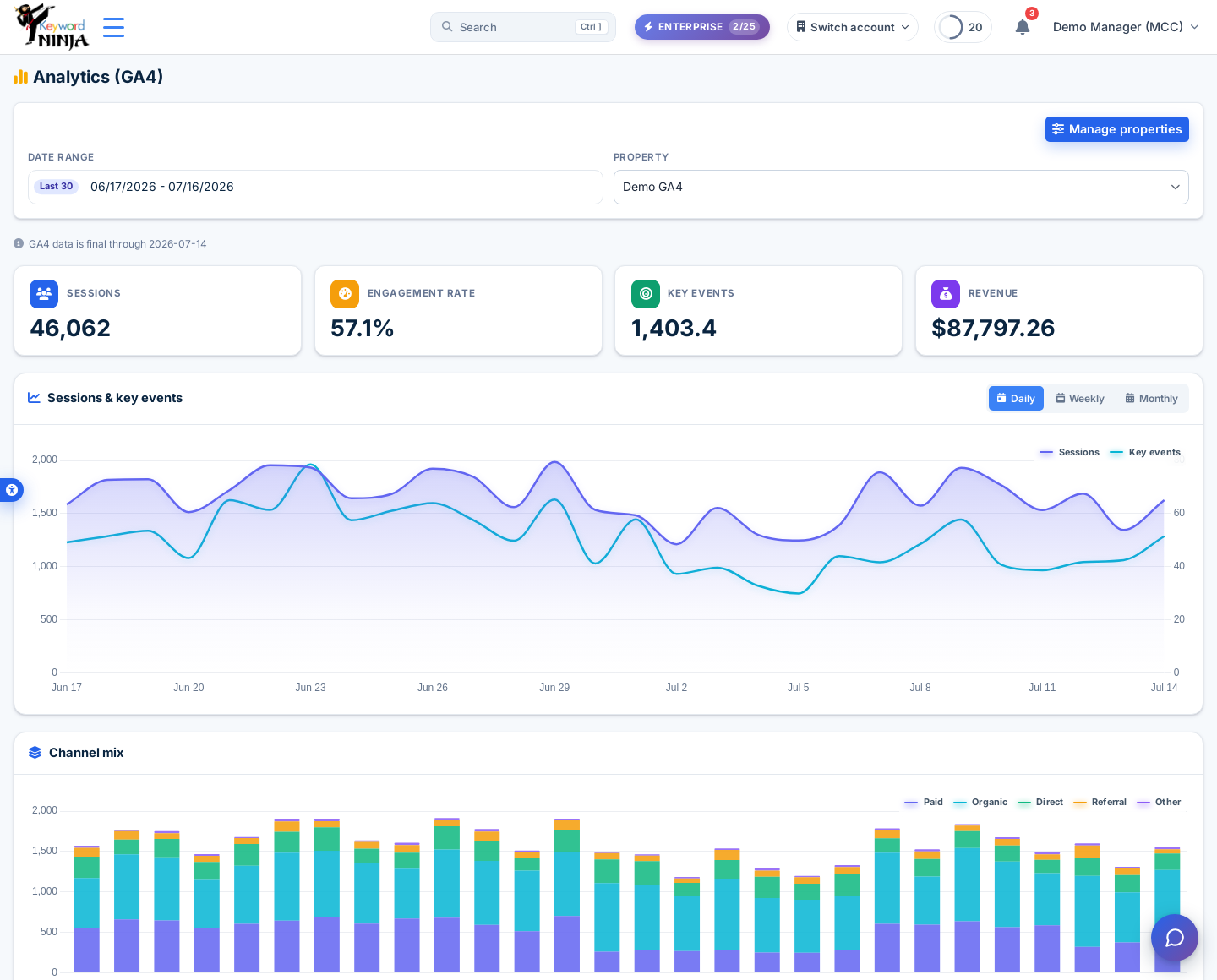
/dashboard/ga4 shows sessions, engagement rate, key events (GA4’s term for conversions), and revenue for your selected window, plus a daily trend chart, a channel-mix breakdown (how much of your traffic is paid vs organic vs direct vs referral), a campaign-level post-click table, and landing-page performance. It also carries the Tracking Health strip - the same signal described below, visible right on the overview.
5. Dig into Post-Click verdicts
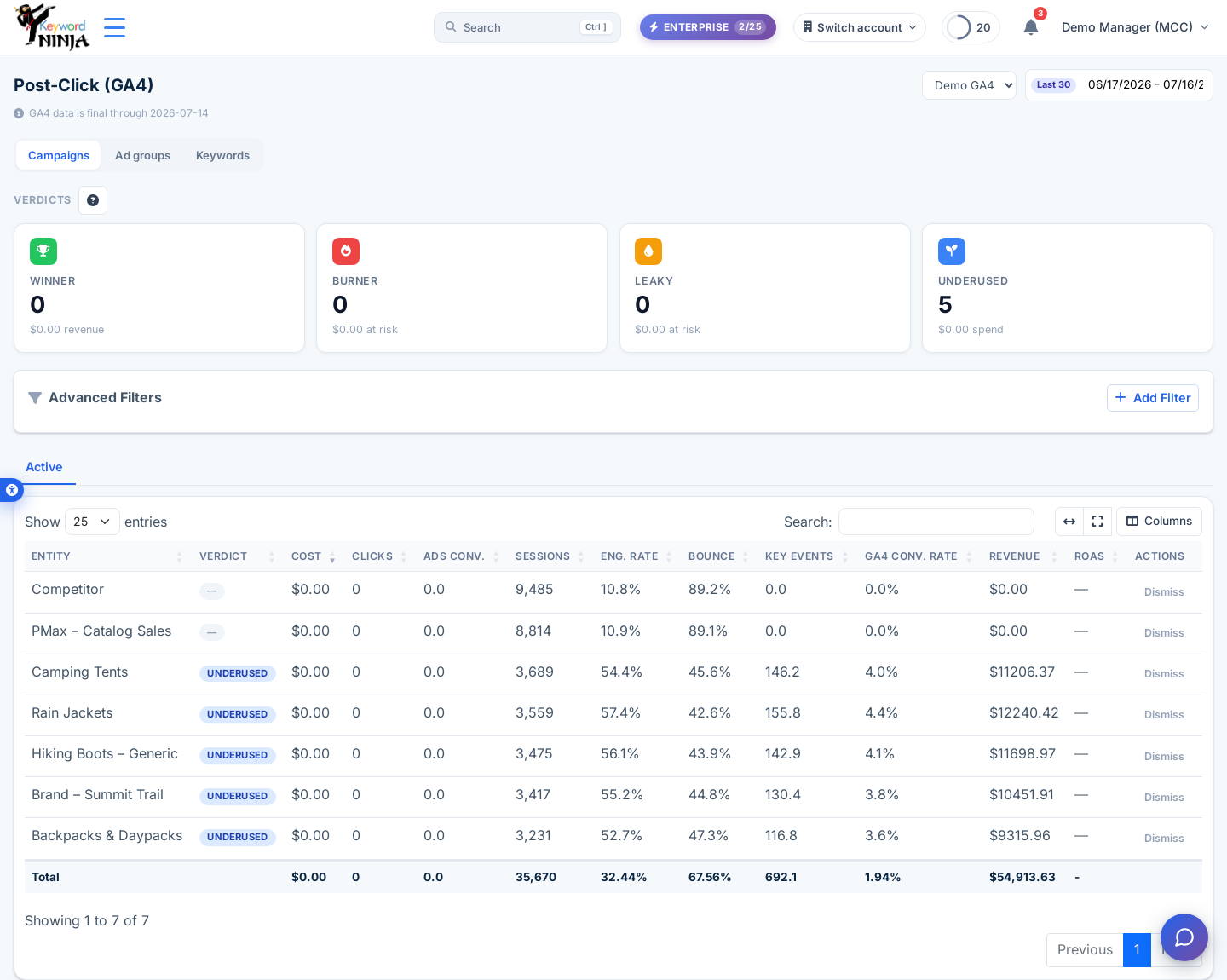
/dashboard/post-click breaks the same post-click data down by campaign, ad group, or keyword (tabs at the top) and assigns a plain-English verdict to each: Winner (real spend, real engagement, real conversions), Burner (real spend and sessions, but almost no engagement and zero conversions - money going nowhere), Leaky (good engagement but zero conversions - something’s broken in the funnel, not the traffic), and Underused (low spend but strong engagement - a candidate for more budget). Landing pages get the same treatment lower on the page. Dismiss any row you’ve already reviewed and decided not to act on.
6. Check Tracking Health regularly
This is the feature worth remembering even if you don’t look at anything else: Tracking Health compares your daily Google Ads clicks against the GA4 paid sessions that should have followed them. On a healthy account, those two numbers track closely. A collapse usually means one of a few very common, very invisible failures - your conversion tag died, a cookie-consent banner is stripping the gclid parameter, auto-tagging got switched off, or the GA4-to-Ads link itself broke - and every one of those quietly starves Smart Bidding of the signal it needs, since most accounts run mostly automated bidding strategies today. Statuses are healthy, degraded (“GA4 is seeing far fewer of your ad clicks than usual”), dark (GA4 saw essentially none of your paid traffic - the most urgent state), unlinked (no GA4-Ads link yet - a setup nudge, not an alarm), and no_baseline (too little history yet to judge). A dark or persistently-degraded account triggers an alert automatically.
Tips & best practices
- GA4 data shows up in a lot of other places once connected: columns on campaigns/ad groups/keywords/search terms, wasted-spend detectors, Quick Wins, three rule-gallery templates, the weekly AI narrative, reports, the dashboard widget, the heatmap’s GA4 strip, and a dedicated Post-Click tab on the Performance Max page.
- Revenue is shown in your GA4 property’s own currency, never silently converted. If that currency doesn’t match your Google Ads account’s currency, true ROAS will show blank rather than a number that’s quietly wrong - confirm the property’s actual reporting currency in GA4 admin if you need that number.
- No campaign-level rows usually means the GA4-to-Ads link is missing inside GA4 itself, not a Keyword Ninja problem - that link (Admin → Google Ads Links, set inside Google Analytics) is what lets sessions carry campaign/ad-group/keyword information at all. Without it, only site-wide and channel-level numbers are available.
- Performance Max attribution in GA4 is structurally partial, even when linked. A real share of PMax sessions can’t be tied back to a specific campaign no matter what you configure - Keyword Ninja suppresses PMax-specific conclusions rather than presenting a number it doesn’t trust when that coverage is too low.
Troubleshooting & FAQ
No campaign/ad-group/keyword rows show up, only site-wide numbers. The GA4-to-Ads link isn’t set up inside GA4 (Admin → Google Ads Links) - without it, GA4 has no way to attribute sessions to a specific Ads entity, so only channel and property totals are usable.
It’s asking me to reconnect. Your GA4 token expired or was revoked - click Reconnect and go through consent again. Your Google Ads connection is untouched.
Tracking Health is stuck on “no_baseline.” There isn’t enough recent history yet (it needs a handful of days with meaningful ad click volume) - common on a low-spend account, a brand-new property, or one still mid-backfill. It’ll resolve itself once there’s enough history.
True ROAS shows a dash even though revenue has a number. Your GA4 property’s currency doesn’t match your Google Ads account’s currency - Keyword Ninja never silently converts between them, so it shows the ratio as unavailable rather than guess at an exchange rate.
Numbers for the last day or two look low, then shift later. Normal - GA4 finalizes reporting data 2-3 days late, and the next daily sync picks up the revision automatically.
Can I connect a different Google account than my Ads login? Yes - the GA4 grant is a separate, read-only connection, so your analytics account and your ads account never need to be the same login.