
Wasted Spend scans your enabled campaigns, ad groups, keywords, and search terms with four straightforward rules - no AI, no black box - and shows you exactly where budget is going nowhere. It’s free on every plan, including Free.
Where to find it & plan availability
Go to Optimize → Wasted Spend in the left sidebar, or open /dashboard/wasted-spend directly. This page and every action on it is available on every plan, no upgrade required.
Step-by-step walkthrough
1. Read the summary
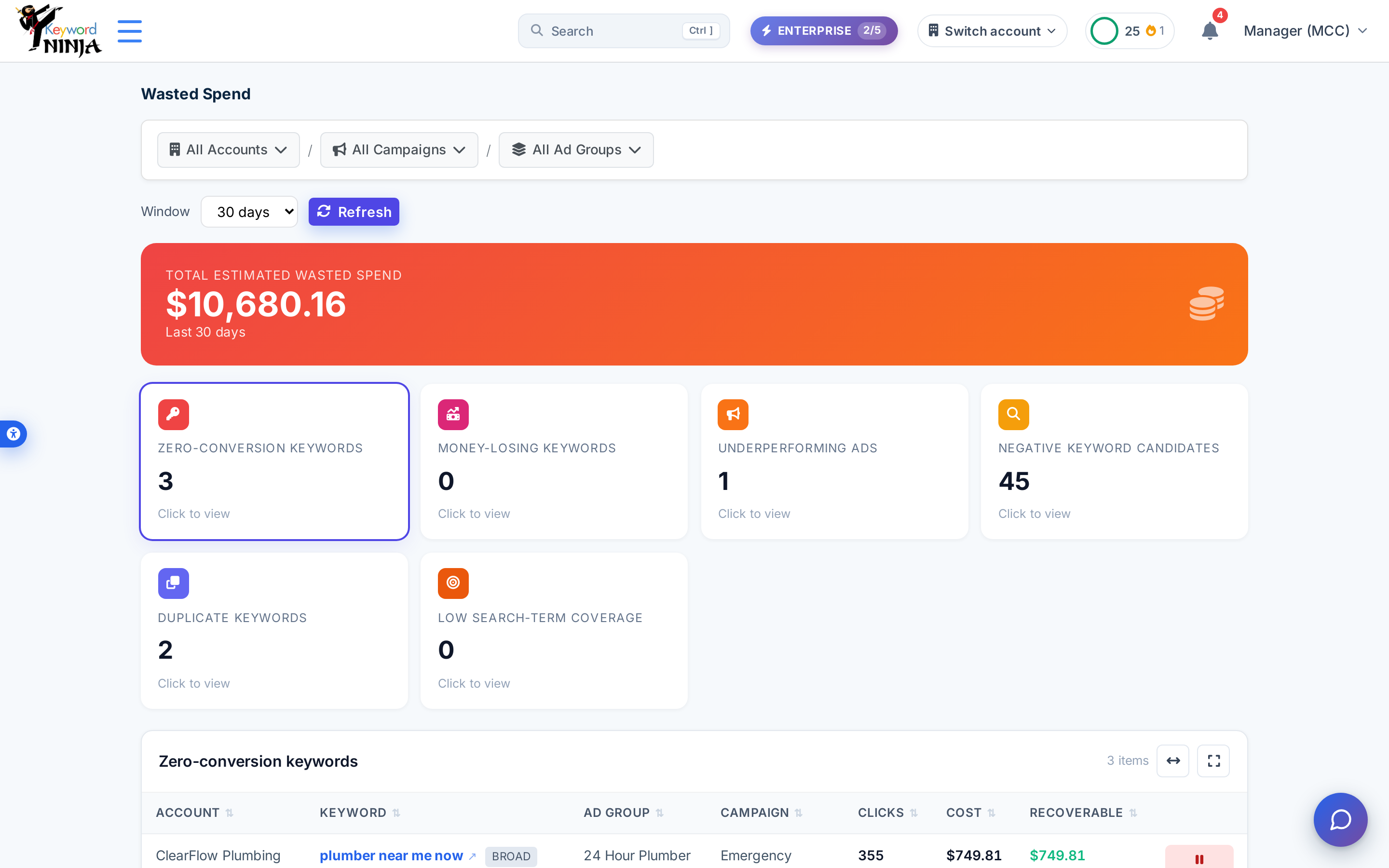
The hero card shows your total estimated wasted spend for the selected window (1-180 days, 30 by default), and six category cards below it show how many issues each detector found. Click any card to load its table.
2. Zero-conversion keywords
Keywords with 30+ clicks, zero conversions, and at least $25 spent in the window - real traffic that’s never converted. The full cost counts as recoverable savings. Each row has a Pause action.
3. Negative keyword candidates
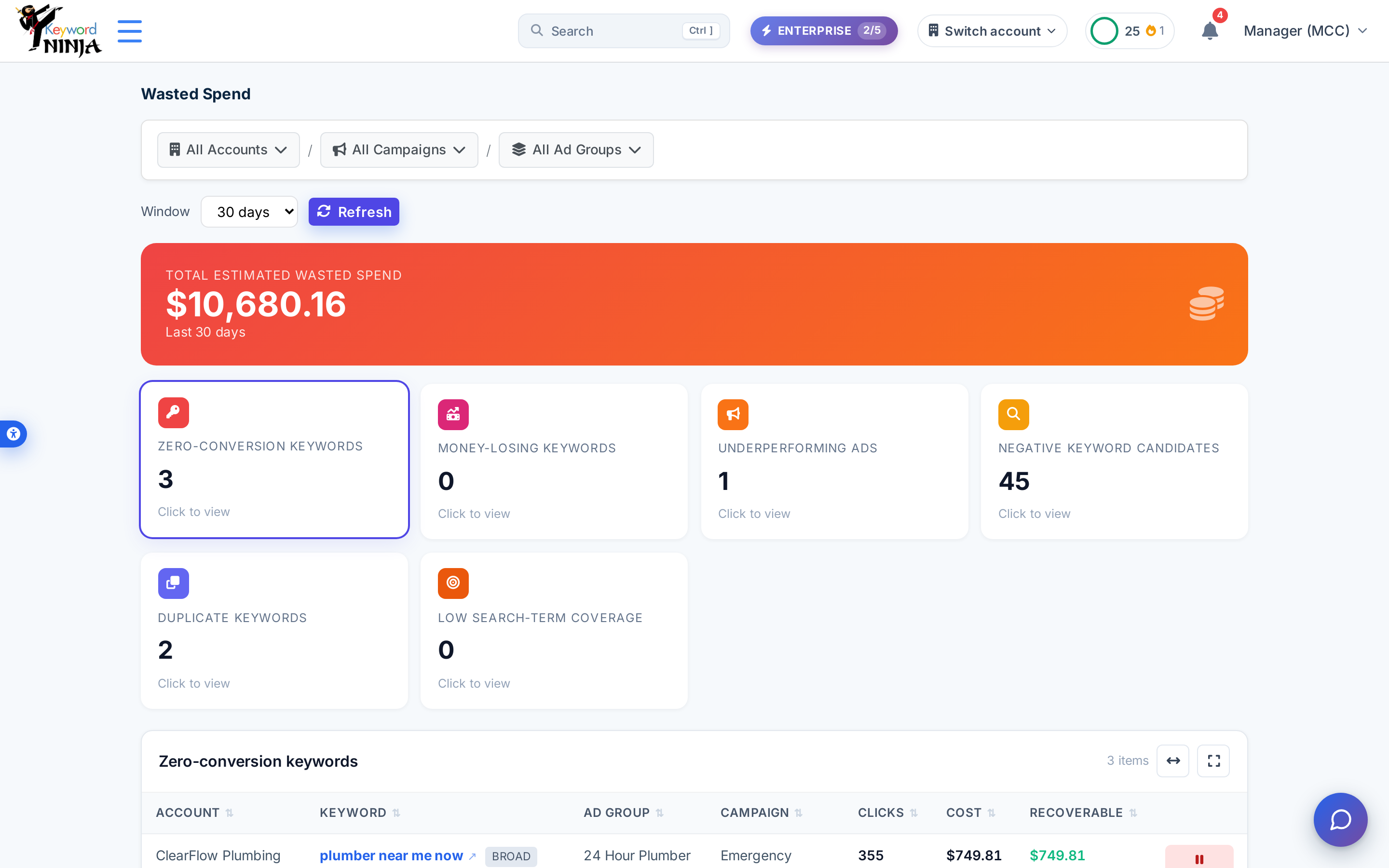
Search terms with 5+ recorded instances, zero conversions, and at least $10 spent, excluding any term that already matches one of your enabled keywords (a negative should never block a keyword that’s actually working). Each row has an Add Negative action.
4. Add a negative with one click
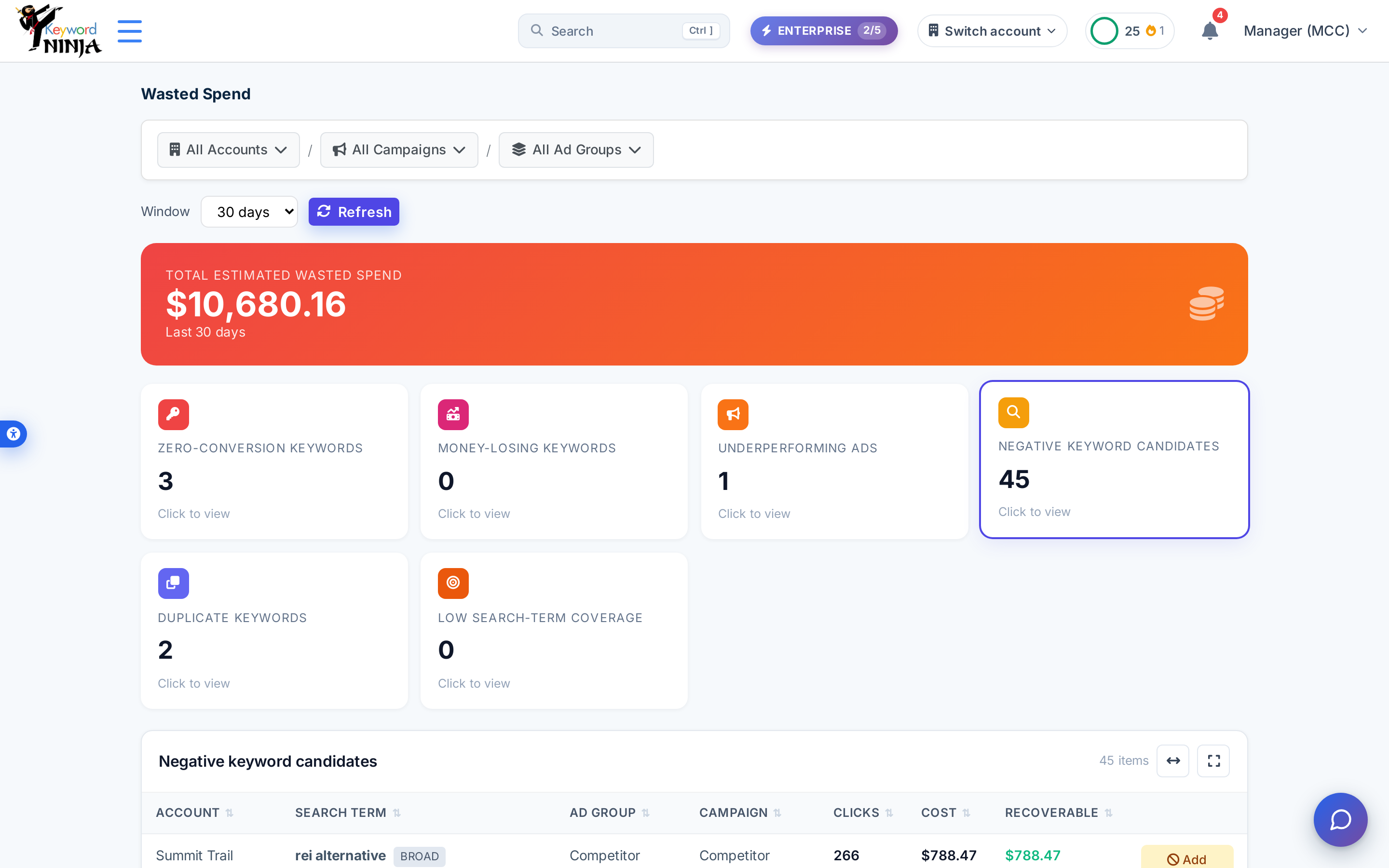
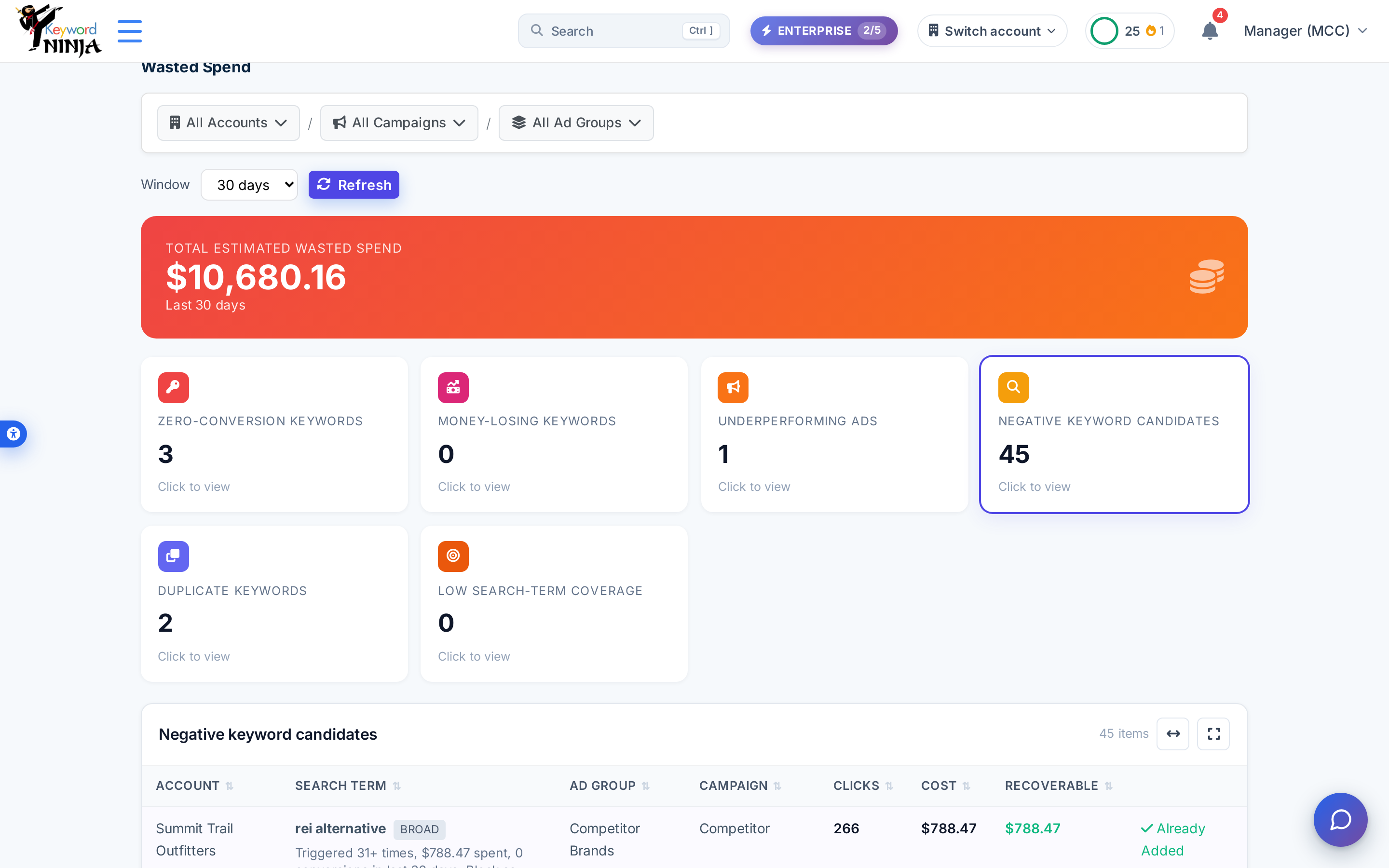
Clicking Add Negative creates an ad-group-level exclusion (exact match) on the highest-cost ad group that search term has been triggering, and marks the term excluded. Already-added terms show a checkmark instead of the button.
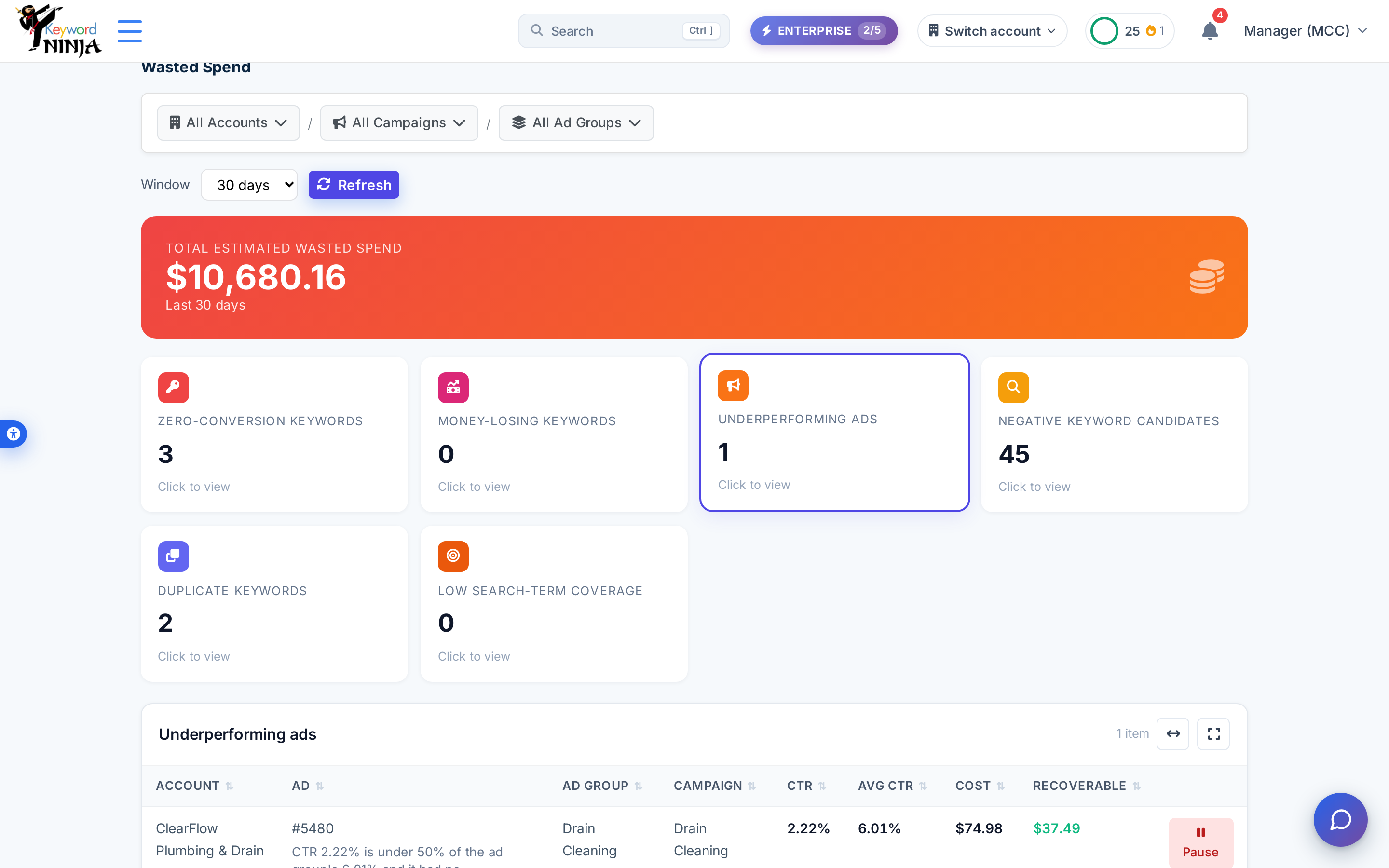
5. Underperforming ads
An ad qualifies when it has 500+ impressions and its CTR is under half the average CTR of the other ads in its ad group (needs at least 2 ads in the group to compute an average) - and only if it has zero conversions, since a low-CTR ad that’s still converting isn’t wasted spend. Flagged ads carry a savings estimate of 50% of their cost (a conservative haircut, not the full amount).
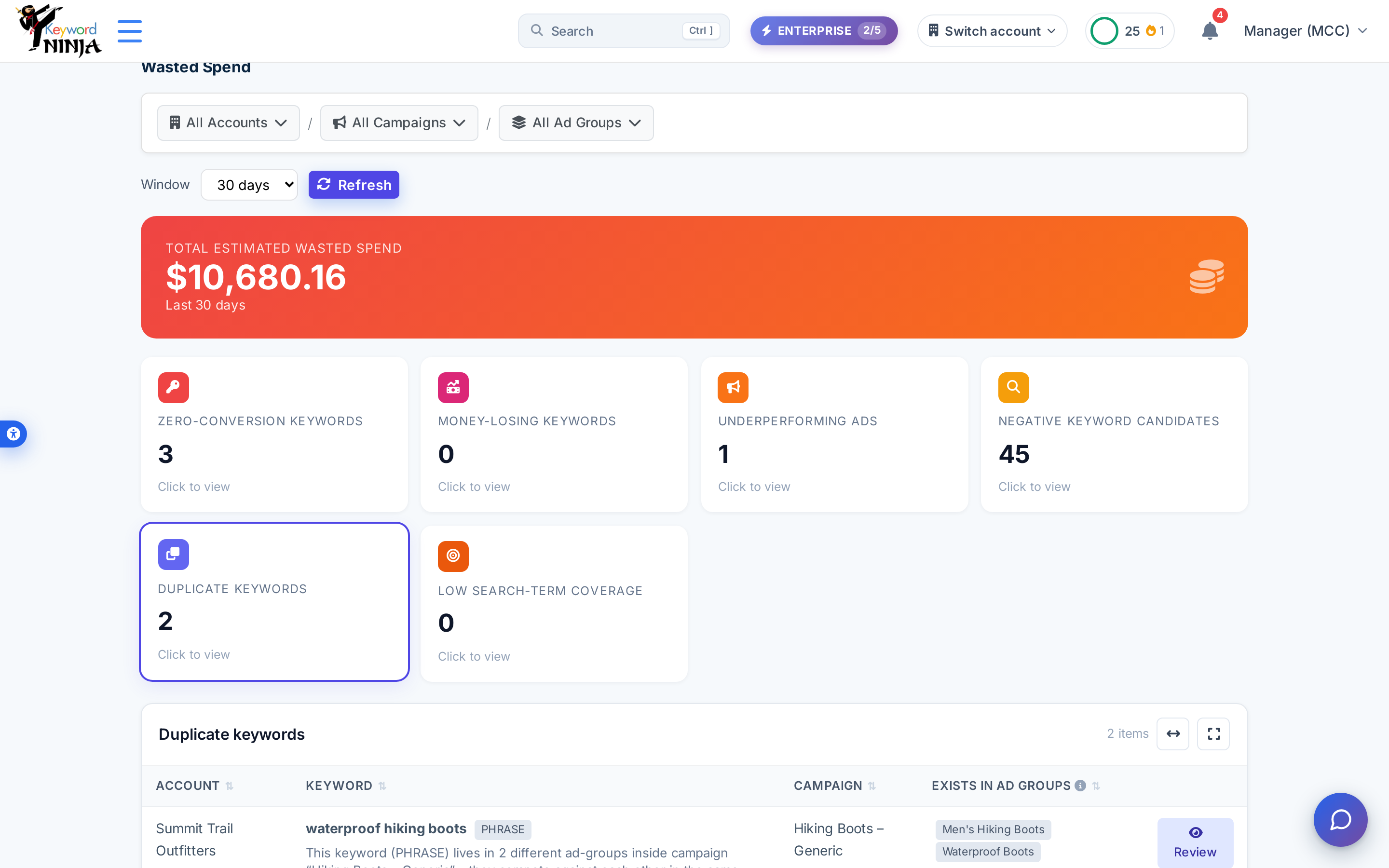
6. Duplicate-intent keywords
The same normalized keyword text and match type showing up in more than one ad group within the same campaign - internal competition (cannibalization) that can inflate your own CPCs. This category has no savings estimate of its own and isn’t counted in the total at the top - it’s a structural warning, not a spend estimate. Each row links to Review rather than offering a one-click fix, since resolving it usually means deciding which ad group should keep the keyword.
Tips & best practices
- Every detector only looks at ENABLED entities - paused or removed keywords/ads/campaigns are excluded, so this always reflects what’s actually spending right now.
- Each detector returns at most 200 items, ordered by cost descending - if a category is capped, the biggest offenders are always the ones you see first.
- The 30-day default is a starting point, not the only view - widen the window to 90 or 180 days to see whether a keyword’s zero-conversion streak is new or long-standing.
- Duplicate-intent keywords are flagged even though there’s no savings number attached - the risk here is efficiency (your own keywords bidding against each other), not direct waste, so treat it as a structural cleanup rather than a savings opportunity.
- Add Negative always targets the highest-cost ad group for that search term - if the term is triggered across several ad groups, check whether you also want to exclude it elsewhere.
Troubleshooting & FAQ
A category shows zero even though I’m sure there’s waste. Check the date window - a keyword might qualify at 90 days but not yet at 30, or vice versa if it just started underperforming. Also confirm the entity is still ENABLED; paused items never show up here.
I don’t see an “Underperforming ads” result even though an ad clearly has a bad CTR. The detector requires at least 2 enabled ads in the same ad group to compute a comparison average, and it excludes any ad with even partial conversion credit - a low-CTR ad that still converts isn’t treated as wasted spend.
“Duplicate keywords” doesn’t add to my total wasted spend number. That’s intentional - this category has no reliable savings estimate (it’s a cannibalization risk, not direct waste), so it’s excluded from the headline total by design.
I clicked Add Negative and nothing seemed to happen. Check for a checkmark/”Already Added” state - the action is idempotent, so clicking it again on an already-excluded term is a no-op, not an error.