
Client Access lets you invite a client to one screen — the Search Term Ninja review board — scoped to a single Google Ads account. They decide which searches become keywords and which get blocked as negatives. Their choices apply to the account immediately, and you see every one of them. No dashboard, no settings, no access to anything else in your workspace.
This is a Pro / Enterprise feature.
Why invite a client
The person best placed to judge a search term is often the client, not the account manager. They know which searches are real customers and which are noise. Client Access gets that judgment straight into the account without a spreadsheet or a week of email.
For the agency
- The right person makes the call on each search — you stop guessing.
- Nothing to train and no logins to provision: one screen, an email sign-in.
- Every keyword added and negative blocked applies to Google Ads through your connection — no copy-paste.
- Every change is in your Change Log under the client’s name, and it’s reversible.
- The client is locked to one account and the review board only — no budgets, no billing, no other clients.
For the client
- A real say in where their budget goes — flag “that’s not us” and it’s handled.
- Dead simple, works on their phone, no Google Ads knowledge needed.
- They see the actual searches their ads paid for — real transparency.
- They can’t break anything: the board only lets them keep or block a search.
Invite a client from the Team page
Open Team (/dashboard/team) and switch to the Clients tab. Enter the client’s email and choose the one account they’ll review, then Send invite. The “What your client will see” panel spells out exactly what they get.
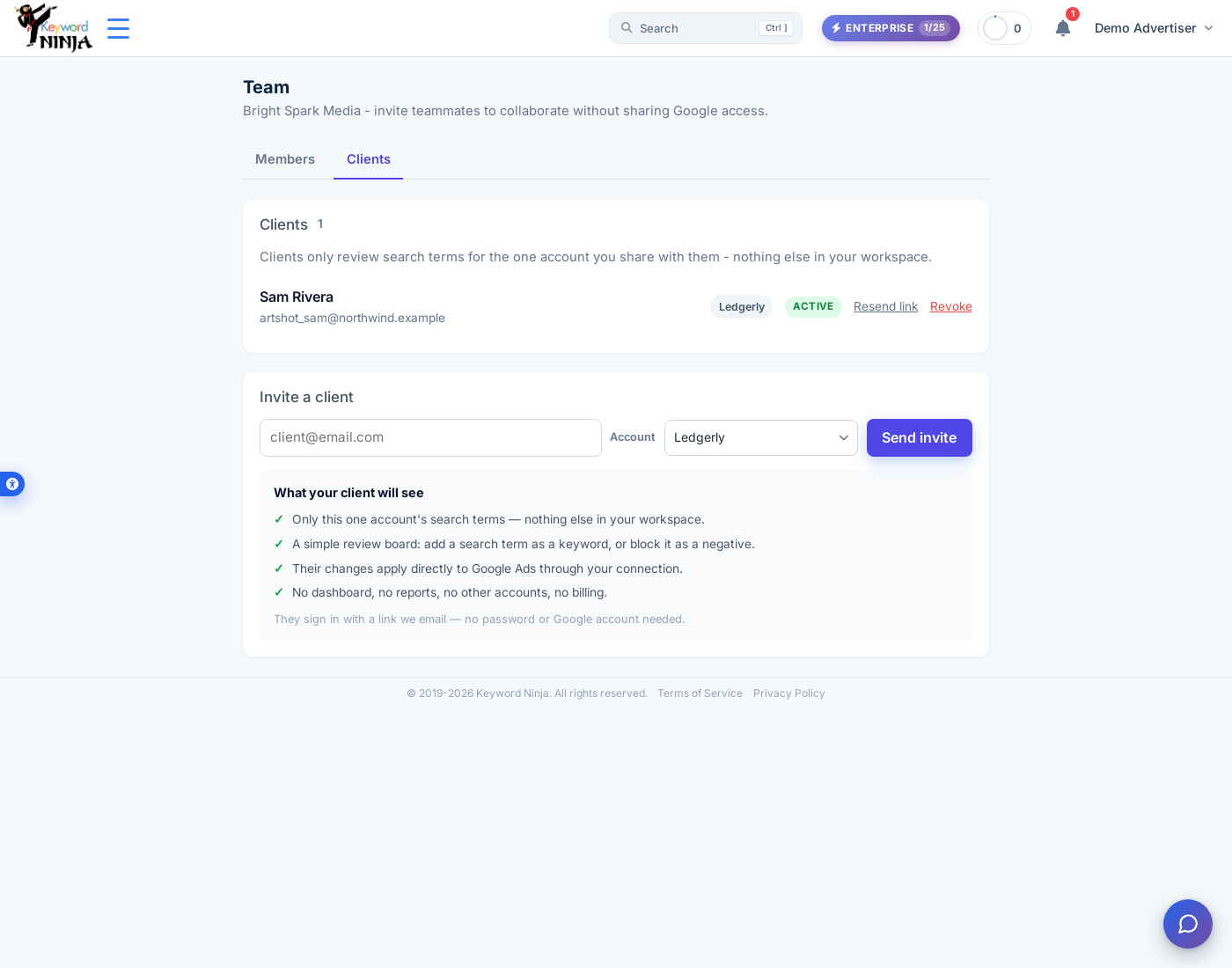
Invited clients appear in the Clients list — separate from your team members — where you can Resend link or Revoke access at any time. A client uses one seat on your plan.
What your client sees
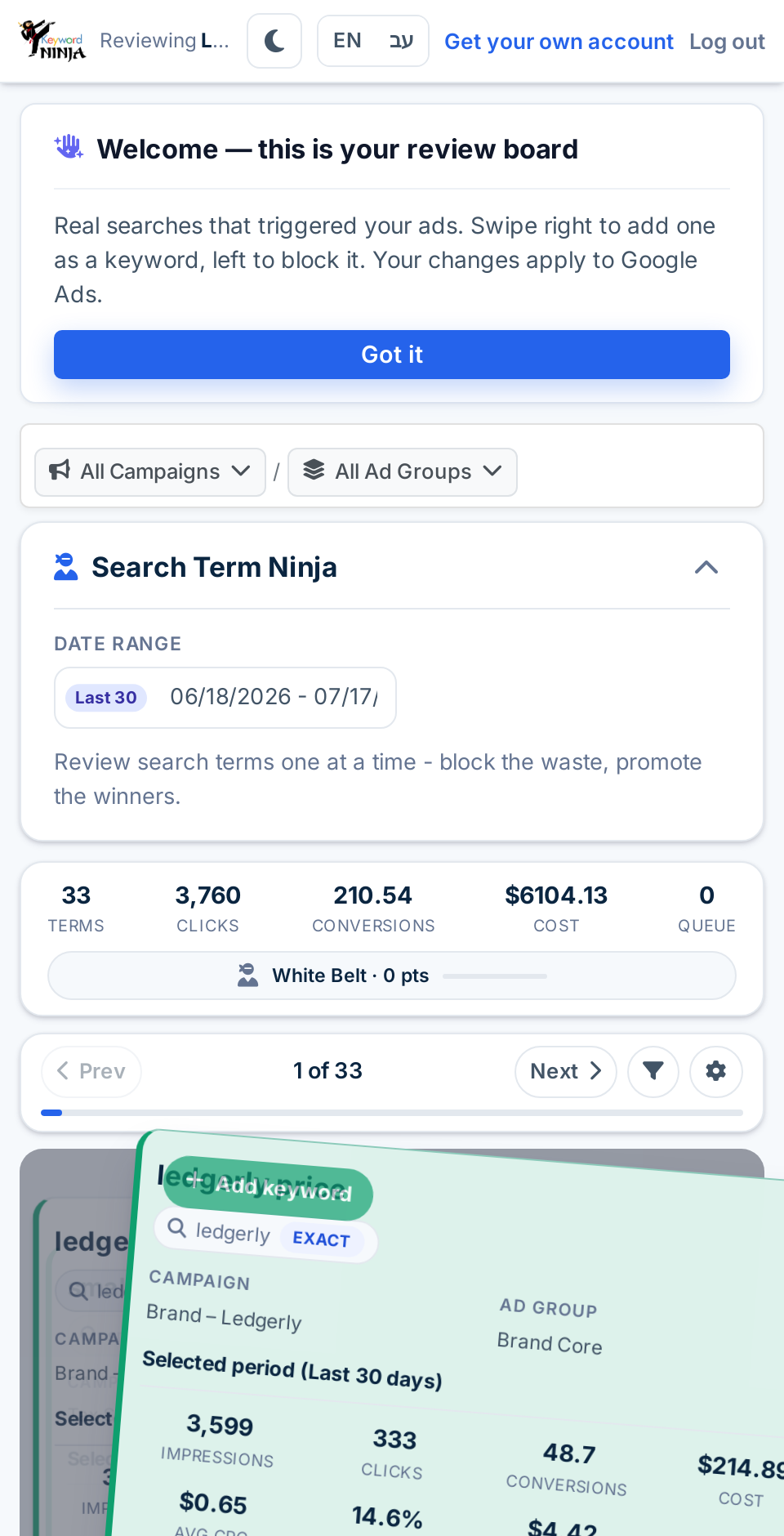
Your client gets an email with a link and a six-digit temporary password. The first time they open it, they choose their own password; after that they simply sign in, and a long-lived session keeps them logged in.
They land on a single review board — no navigation, no menus — with a header that shows exactly which account they’re reviewing and who shared it.
Then it’s one search term at a time: the real query, the keyword and ad group it came from, and how it’s performing. The client adds it as a keyword, blocks it as a negative, or skips it.
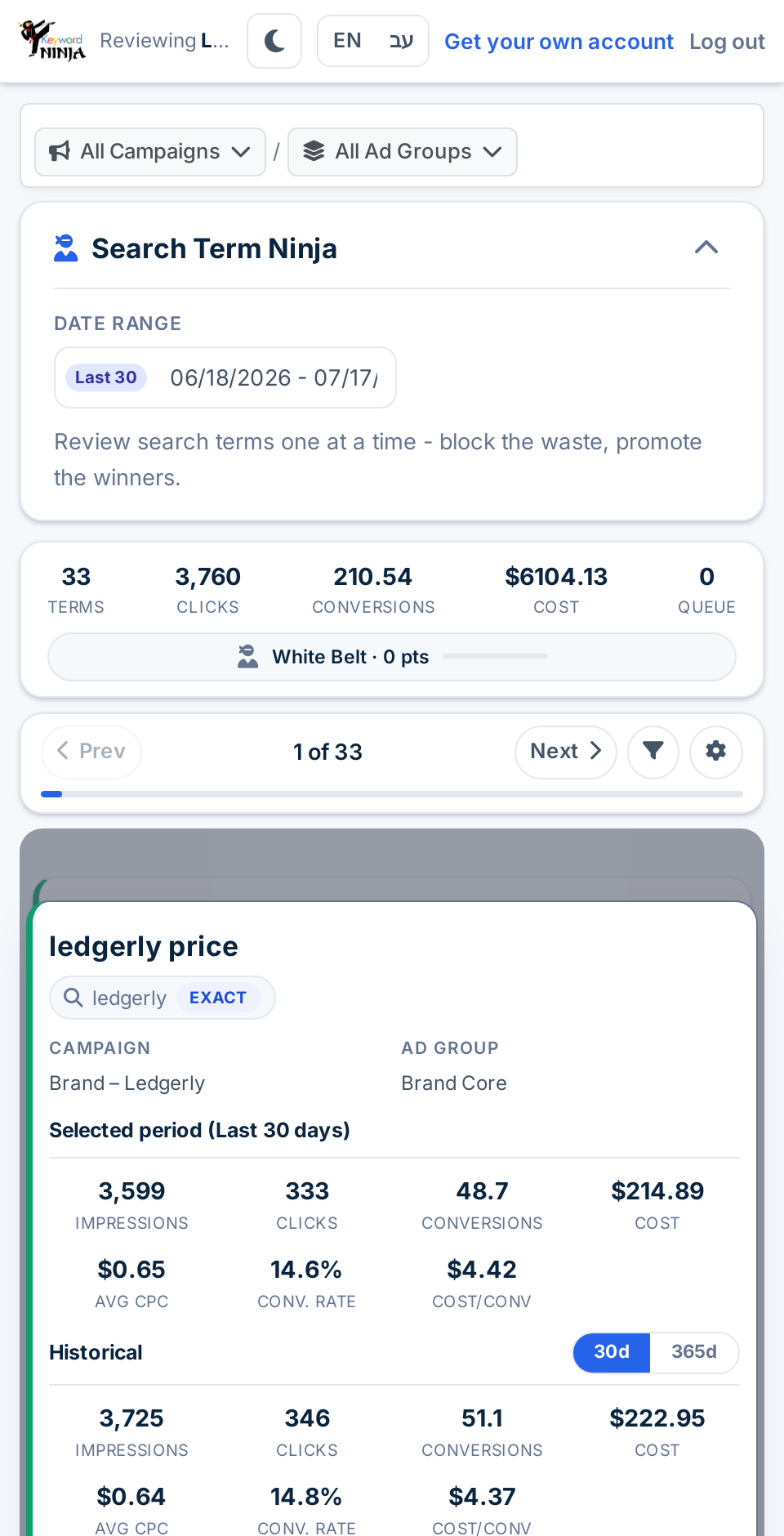
That’s the whole job — the one decision only they can make well. Everything they add or block applies to the account through your connection and shows up in your Change Log attributed to them.
Share straight from the review board
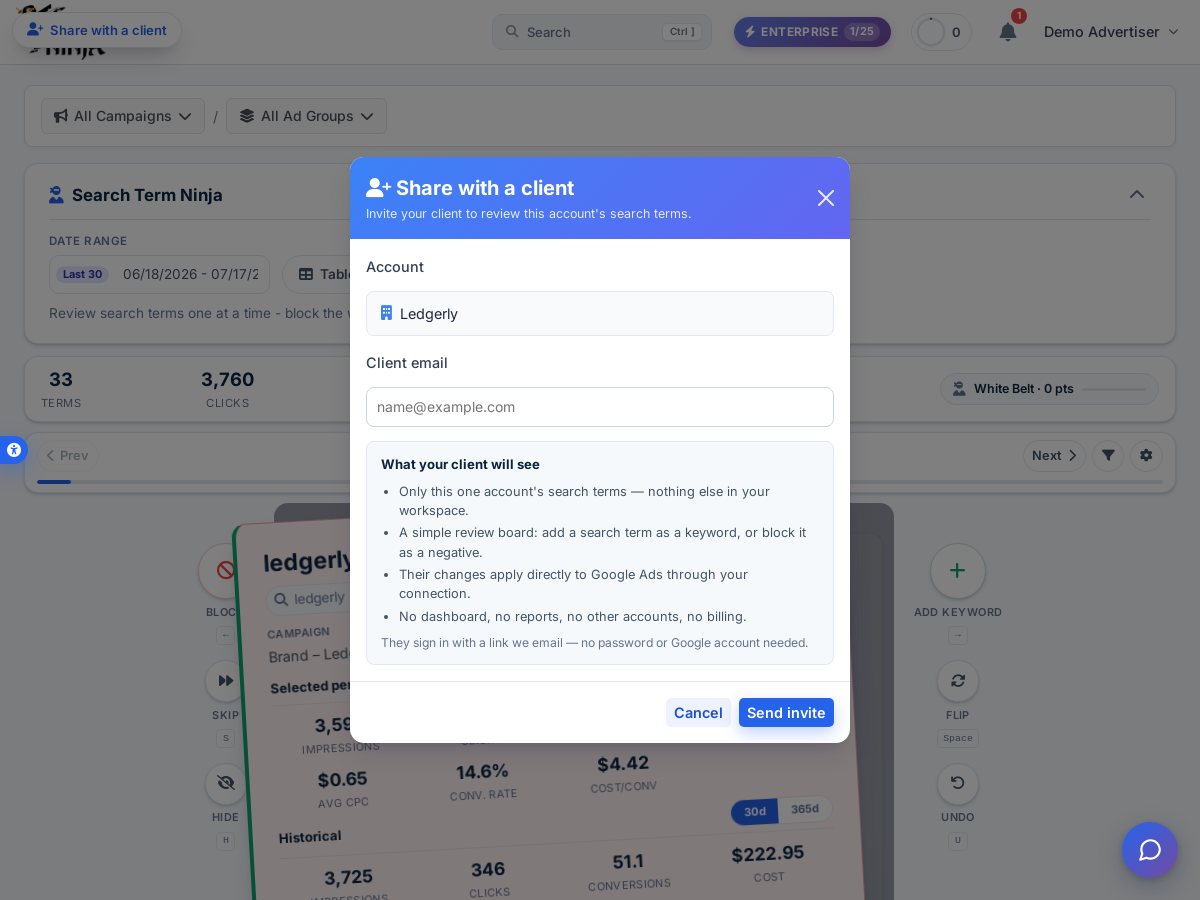
You can also invite a client without leaving the board. The Share with a client button in the top-left corner opens the same invite form, pre-filled with the account you’re already looking at.
Managing access
- Resend link — sends the client a fresh sign-in link.
- Revoke — ends their access immediately; their link stops working.
- Access is scoped per client to one account, and clients only ever see the review board. If a client later wants their own full Keyword Ninja account, they can create one from the same email — it stays separate from the account you shared.
Clients count toward your plan’s member seats. Client Access is available on Pro and Enterprise plans.