
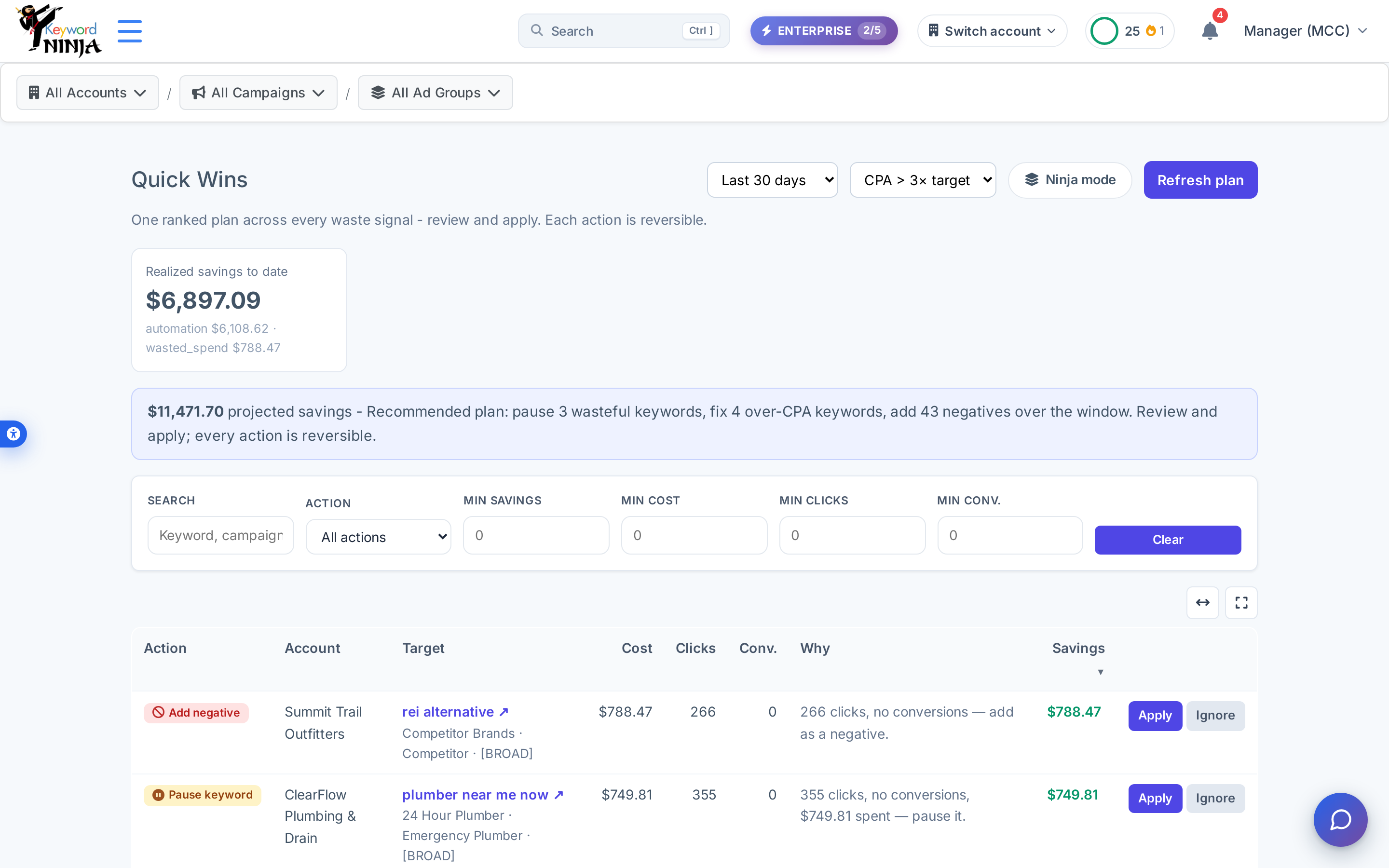
Quick Wins pulls every waste signal Keyword Ninja can detect - zero-conversion keywords to pause, obvious search terms to add as negatives, and keywords running hot on CPA - into a single ranked list with a projected savings number next to each row. Review it and apply what you agree with; nothing changes on Google Ads until you say so.
Where to find it & plan availability
Go to Optimize → Quick Wins in the left sidebar, or open /dashboard/quick-wins directly. The page itself loads for anyone, but the plan and every apply action require a PRO or ENTERPRISE plan - on a lower plan you’ll see an inline message instead of a plan.
Step-by-step walkthrough
1. Review the ranked plan
The page opens with a realized-savings card (what you’ve already saved via automation or manual applies), a plain-language summary of the recommended plan, and a filterable table: one row per recommendation with its action, target, cost/clicks/conversions, a plain-English “why,” and its projected savings.
2. Apply a straightforward fix
For pause-keyword, pause-ad, and add-negative rows, clicking Apply shows a short confirm dialog with the context and a plain-language description of what will happen, then applies it immediately.
3. Fix a high-CPA keyword
A “High CPA” row is different - its keyword is spending well above target, but the right fix depends on how the ad group bids. Clicking Apply opens a choice:
- Manual CPC ad groups: lower the bid to a suggested new max CPC, or pause the keyword outright.
- Target CPA ad groups: give the keyword its own ad group with a looser target (Quick Wins creates the ad group, moves the keyword into it with the new target, and pauses it in the original group so nothing double-serves), or pause it.
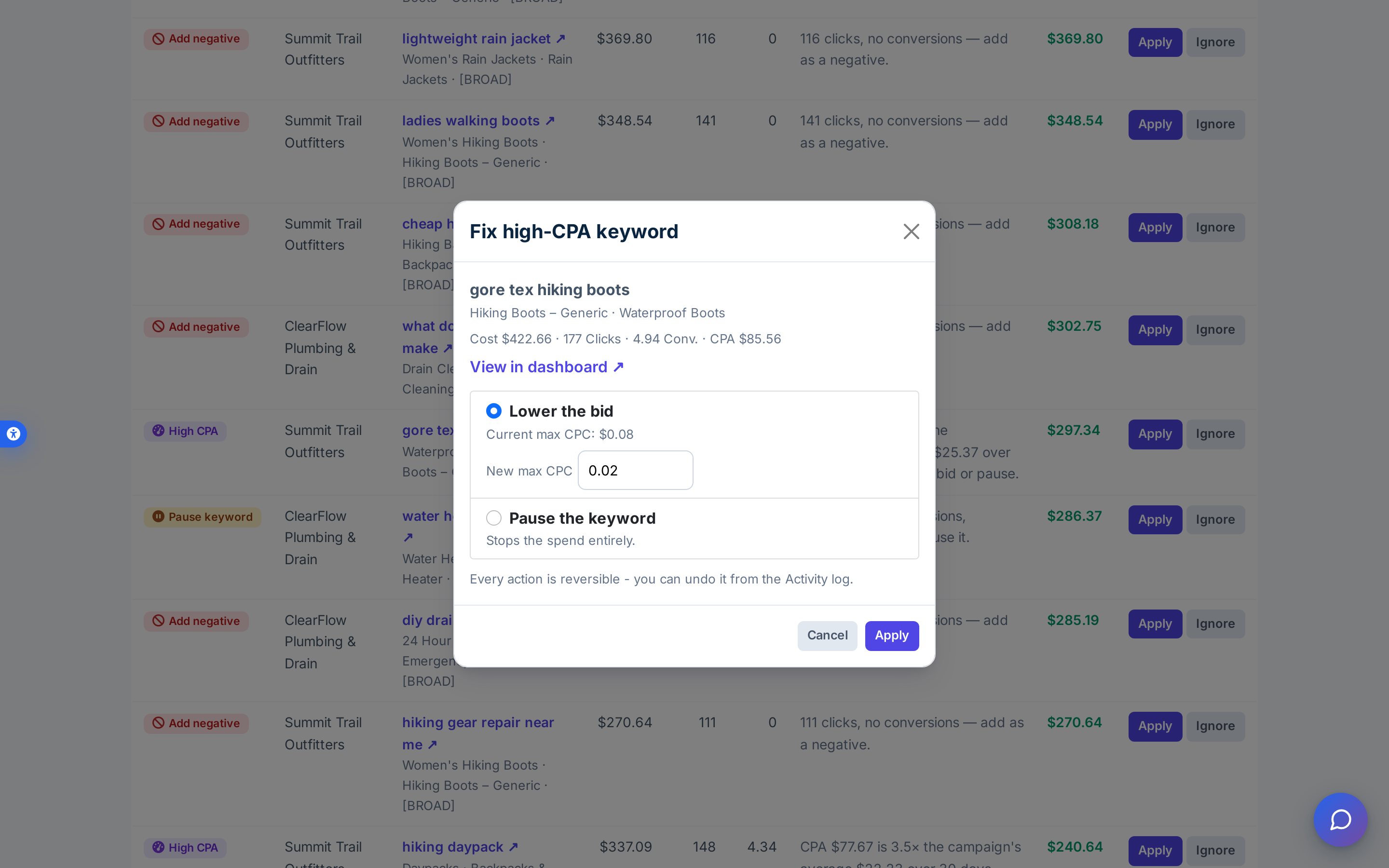
Every choice’s outcome is spelled out before you confirm, and the modal reminds you every action can be undone from the Activity log.
4. See it applied
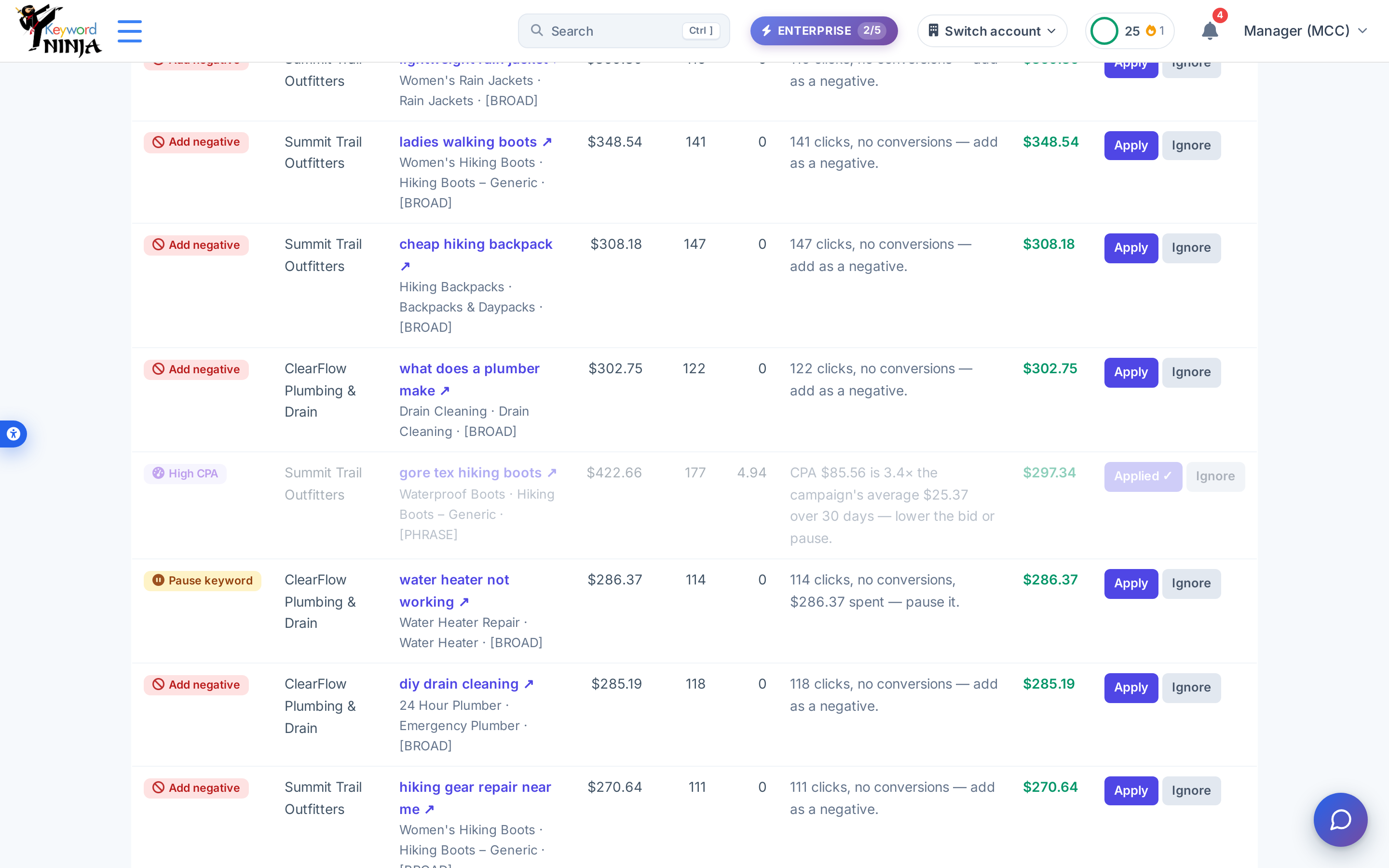
Once you confirm, that row is marked Applied ✓ and its buttons disable - no page reload needed.
5. Or review with Ninja mode
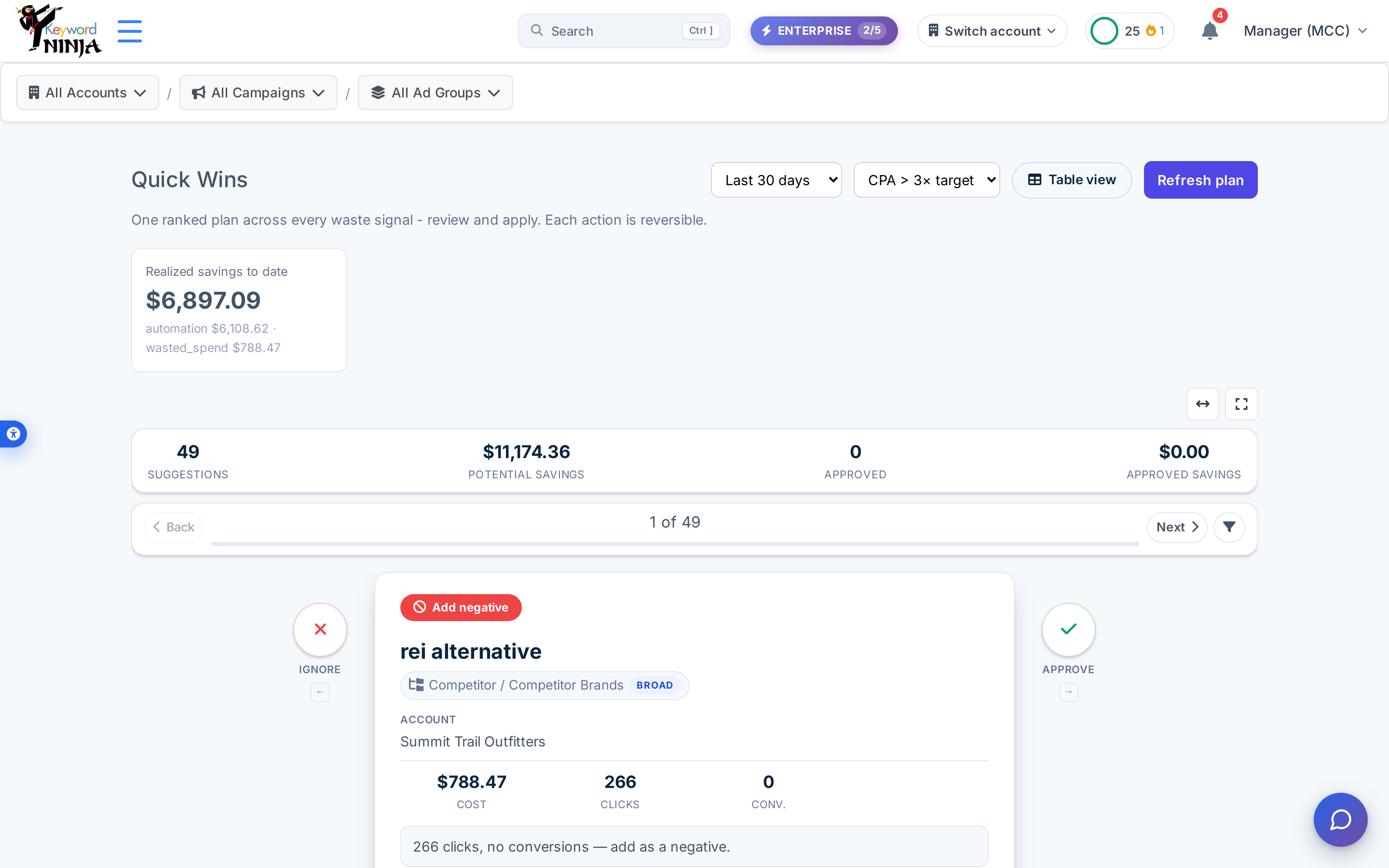
Click Ninja mode to switch from the table to a full-screen, swipeable card deck: one recommendation at a time, with clear Ignore/Approve controls (and keyboard/swipe gestures). Approving a High-CPA card opens the same choice dialog before it’s staged. Approved cards queue up so you can batch-apply everything you approved in one go instead of one row at a time.
Tips & best practices
- Every action here is reversible from the Activity log - if a pause or negative turns out to be wrong, you can undo it there rather than manually reverting it in Google Ads.
- The CPA multiplier filter controls what counts as “high CPA” - the default flags keywords running at more than 3x their target; tighten or loosen it to match your risk tolerance.
- Only pause and add-negative actions count toward your realized-savings ledger - a bid-lowering fix doesn’t get savings credit, since it reduces future spend rather than stopping it outright.
- Ninja mode is the faster way to triage a long list - swipe through everything once (ignoring what you don’t want) before batch-applying, rather than scanning a long table.
- Ignoring a recommendation is local, not permanent - it’s remembered so it won’t keep resurfacing in your session, but it isn’t a server-side dismissal record the way applying is.
Troubleshooting & FAQ
Some labels stay in English even on the Hebrew site. The “Quick Wins” page title, the “Ninja mode” label, and the plain-language recommended-plan summary sentence aren’t localized yet and always show in English, while the table headers, filters, and modal content are - a known content gap, not a bug.
I don’t see a plan at all. Quick Wins requires a PRO or ENTERPRISE plan; a lower plan shows a message instead of the ranked list. Make sure an account is also selected in the breadcrumb at the top of the page.
A high-CPA keyword only shows a “pause” option, no bid/target choice. That happens when the ad group’s bidding strategy isn’t Manual CPC or Target CPA (e.g. it’s on Maximize Conversions with no manual control) - Quick Wins doesn’t offer a bid/target edit it can’t actually apply, so pausing is the only listed fix.
I applied something and want to undo it. Every action here writes to the Activity log with an undo option - use that rather than manually reversing the change in Google Ads.