Automation Rules let Keyword Ninja apply the same wasted-spend logic you’d otherwise do by hand - pausing zero-conversion keywords, adding obvious negatives, promoting winning search terms - on a schedule, without you clicking through it every week. You deploy a rule from a gallery of pre-built templates, preview exactly what it would do, and let it run (or run it yourself on demand).
Where to find it & plan availability
Go to Optimize → Automations in the left sidebar, or open /dashboard/automations directly. Browsing the Gallery, My Rules, My Library, History, and Duplicates tabs is free for any logged-in user - but deploying, previewing, running, or editing a rule requires a PRO or ENTERPRISE plan. If your plan doesn’t include it, those actions show an upgrade banner instead of doing anything.
The account/campaign/ad-group selector at the top scopes which account’s rules and history you’re looking at.
Step-by-step walkthrough
1. Browse the Gallery
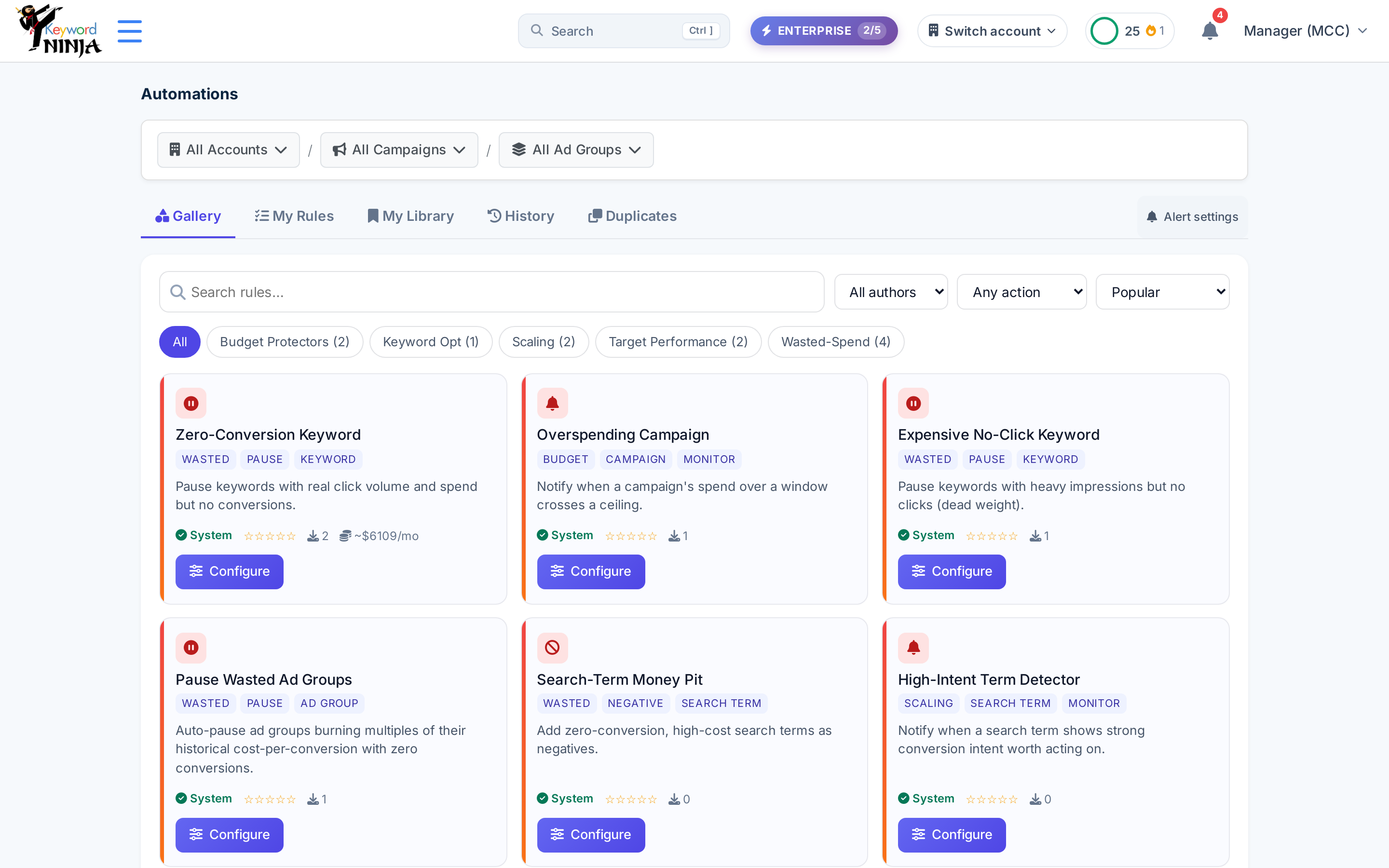
The Gallery tab is the default view: a searchable, filterable catalog of rule templates, grouped by category (Wasted-Spend, Target Performance, Scaling, Keyword Opt, Budget Protectors) and tagged by the entity they act on (keyword, ad group, campaign, search term) and the action they take (pause, add negative, add keyword, notify only).
2. Configure a rule
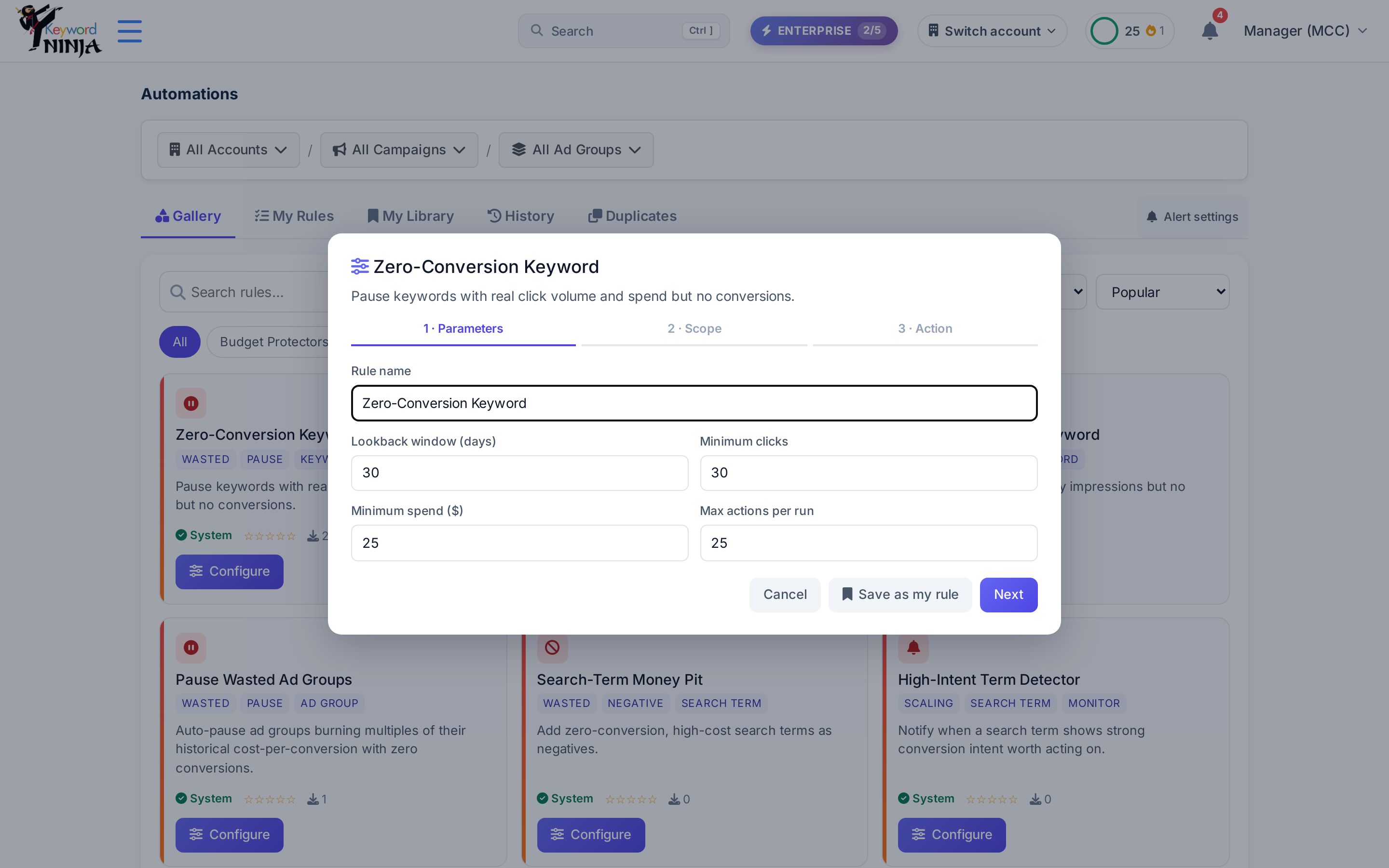
Click Configure on any template card to open a 3-step wizard:
- Parameters - the rule’s name and its condition fields (these come from the template - for example, “Zero-Conversion Keyword” asks for a lookback window in days, minimum clicks, minimum spend, and a cap on how many keywords it touches per run).
- Scope - which account(s) to deploy to, and whether it applies to the entire account, specific campaigns, or specific ad groups.
- Action - the execution action, a schedule (daily/weekly/hourly/manual), notification channels, and whether to require a dry run before the first live change. This step also shows a live impact estimate as you adjust the fields.
Click Deploy to install the rule, or Save as my rule to keep a customized copy in My Library without deploying it yet.
3. Find it in My Rules
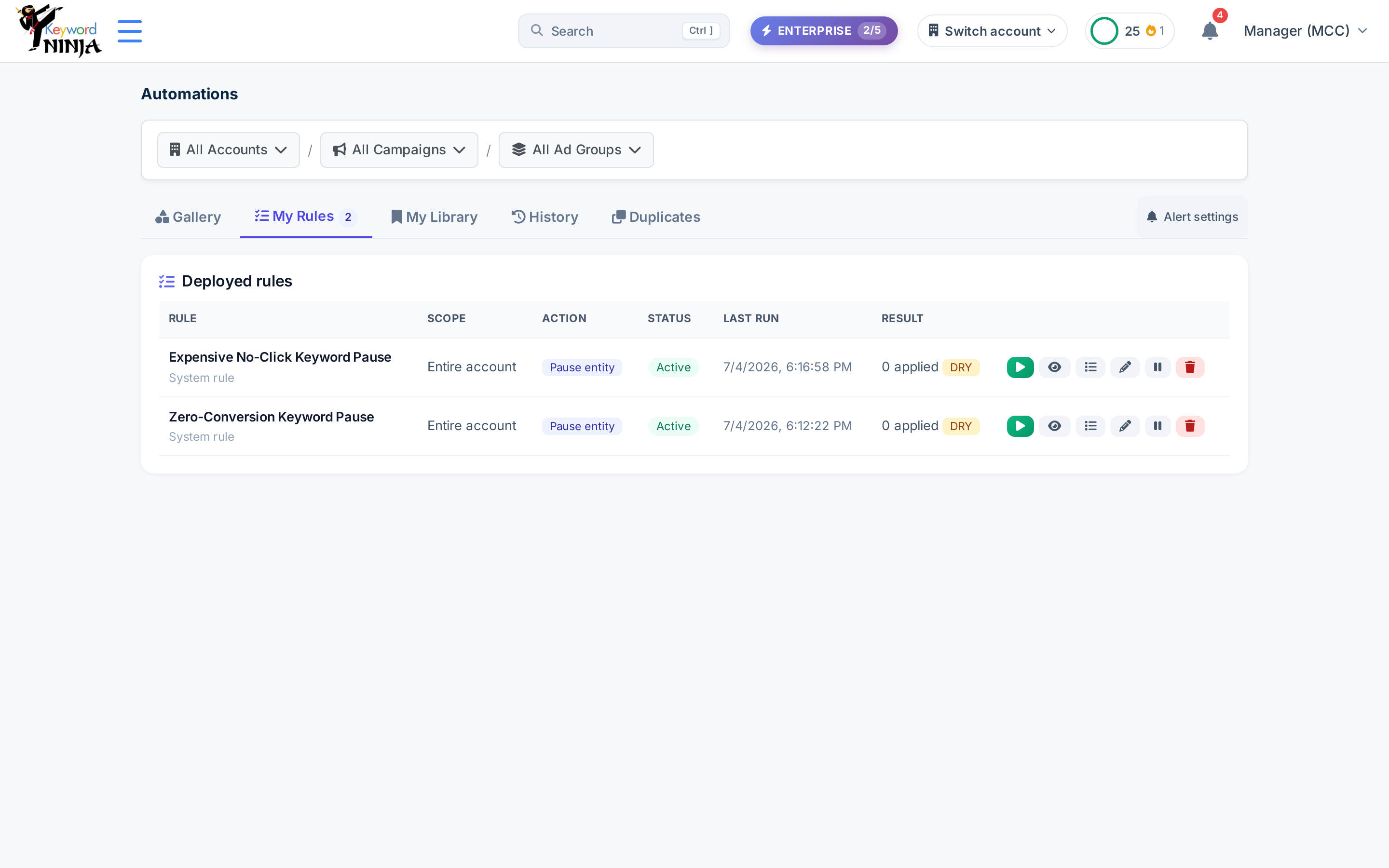
Deployed rules live under the My Rules tab, one row per rule, with its scope, action, status, last-run time, and last result. From here you can run it, preview it (dry run), view its run history, edit it, pause/resume it, or delete it.
4. Preview before you trust it
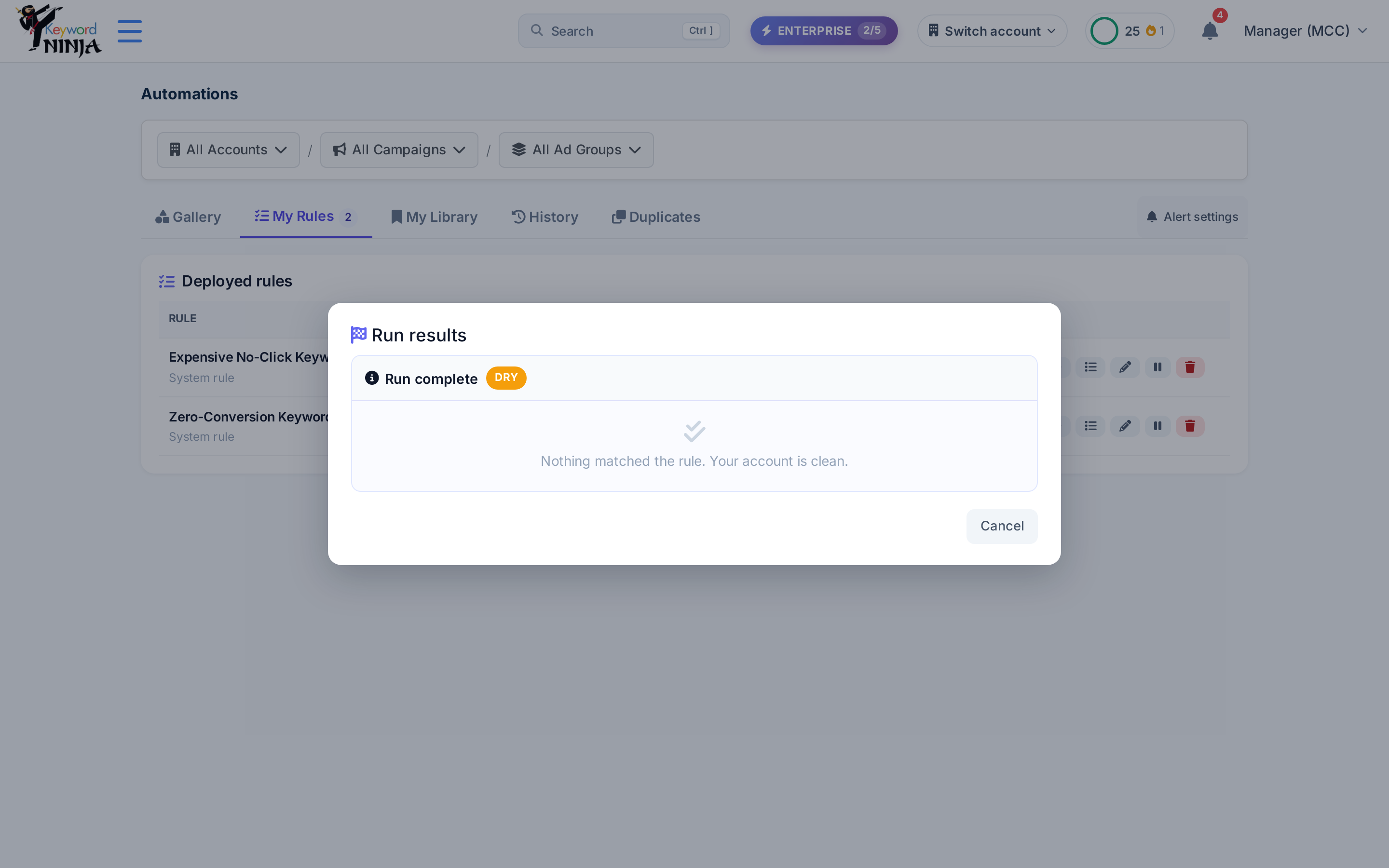
Click the eye icon on a rule’s row to dry-run it - this evaluates every condition and shows exactly what it would do, without touching Google Ads. If nothing currently matches, you’ll see a plain “Nothing matched the rule. Your account is clean” message instead of a fabricated result.
5. Run it live
Click the play icon to run a rule for real - you’ll get a confirmation prompt first. A live run applies its action (e.g. pausing keywords) immediately and reports how many succeeded, failed, or triggered a notification instead of a change.
6. Read the History
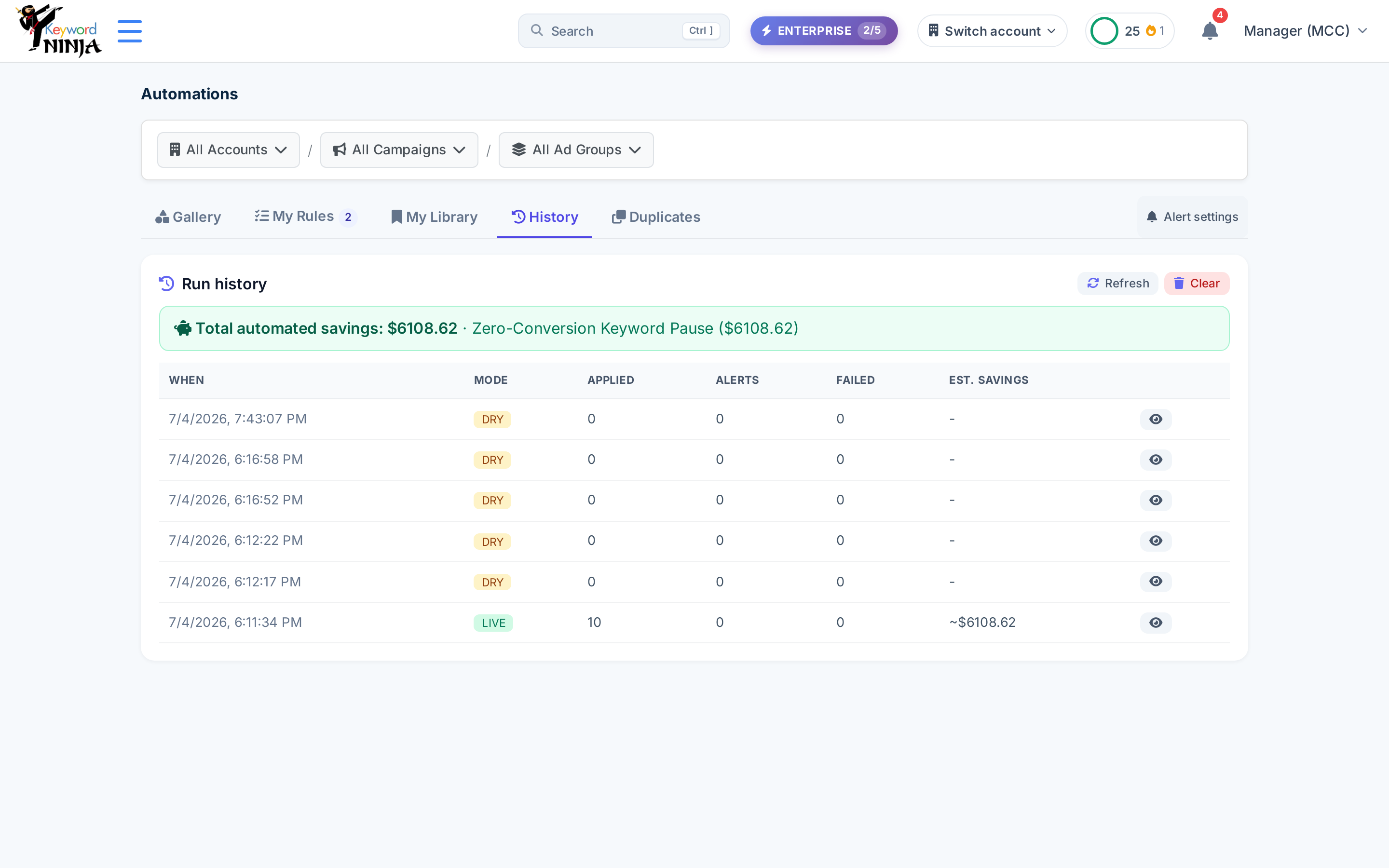
The History tab lists every run across all your rules - timestamp, mode (DRY or LIVE), how many items were applied/alerted/failed, and the estimated savings for that run - plus a running total of automated savings at the top. Click the eye icon on any row to see the individual items that run touched.
Tips & best practices
- Deploy with “dry run first” checked until you trust a rule’s behavior on your account - it forces a preview before the first live change instead of acting immediately.
- Rule template names and descriptions in the Gallery are catalog content, not interface chrome - if you’re viewing the Hebrew site, the surrounding page (tabs, filters, buttons) is in Hebrew, but individual rule titles and descriptions currently stay in English.
- A dry run’s “Nothing matched” result is a good sign, not an error - it means your account is already clean for that rule’s condition, or a previous live run already handled the candidates.
- Scope matters - deploying “entire account” applies the rule everywhere; scope to specific campaigns or ad groups if you only want it acting on part of your account.
- Schedule vs. manual - a rule with a schedule other than “Manual only” runs automatically without you opening the page; keep schedule set to manual for rules you want to trigger yourself.
- Undo exists at two levels - undo a whole run, or undo a single item from within that run’s detail view, if a live run did something you want to reverse.
Troubleshooting & FAQ
I see an upgrade banner instead of the Gallery working. Automations (beyond browsing) requires a PRO or ENTERPRISE plan - the banner links to Pricing.
My rule’s last run shows “never”. It hasn’t been run yet - either wait for its schedule, or run it manually from the My Rules table.
A dry run shows different candidates than expected. Check the rule’s condition parameters (lookback window, thresholds) in its configuration - a narrower window or higher threshold will naturally match fewer candidates.
I want to see exactly what a run changed. Open History and click the eye icon on that run’s row for a full item-by-item breakdown, or use “Undo run” if you need to reverse it.
Two rules seem to do almost the same thing. That’s expected - templates like “Zero-Conversion Keyword” and “Expensive No-Click Keyword” target overlapping but distinct waste patterns (has clicks but no conversions, vs. has impressions but no clicks at all); deploy the ones that match how you want to manage risk.