
Reports turns your account data into a polished, client-ready document - a portfolio summary, per-account breakdowns, trend charts, wasted-spend findings, and more - without you building a slide deck by hand. Pick the pages, preview exactly what your client will see, generate a PDF, and either download it, share a link, or schedule it to email itself on a recurring basis.
Where to find it & plan availability
Go to Optimize → Reports in the left sidebar, or open /dashboard/reports directly. The page always loads, but building, generating, and scheduling reports requires a PRO or ENTERPRISE plan - lower plans see an upgrade card instead of the builder. The White label tab specifically requires a plan that includes white-label branding; if yours doesn’t, that tab doesn’t appear at all.
Step-by-step walkthrough
1. Build a report
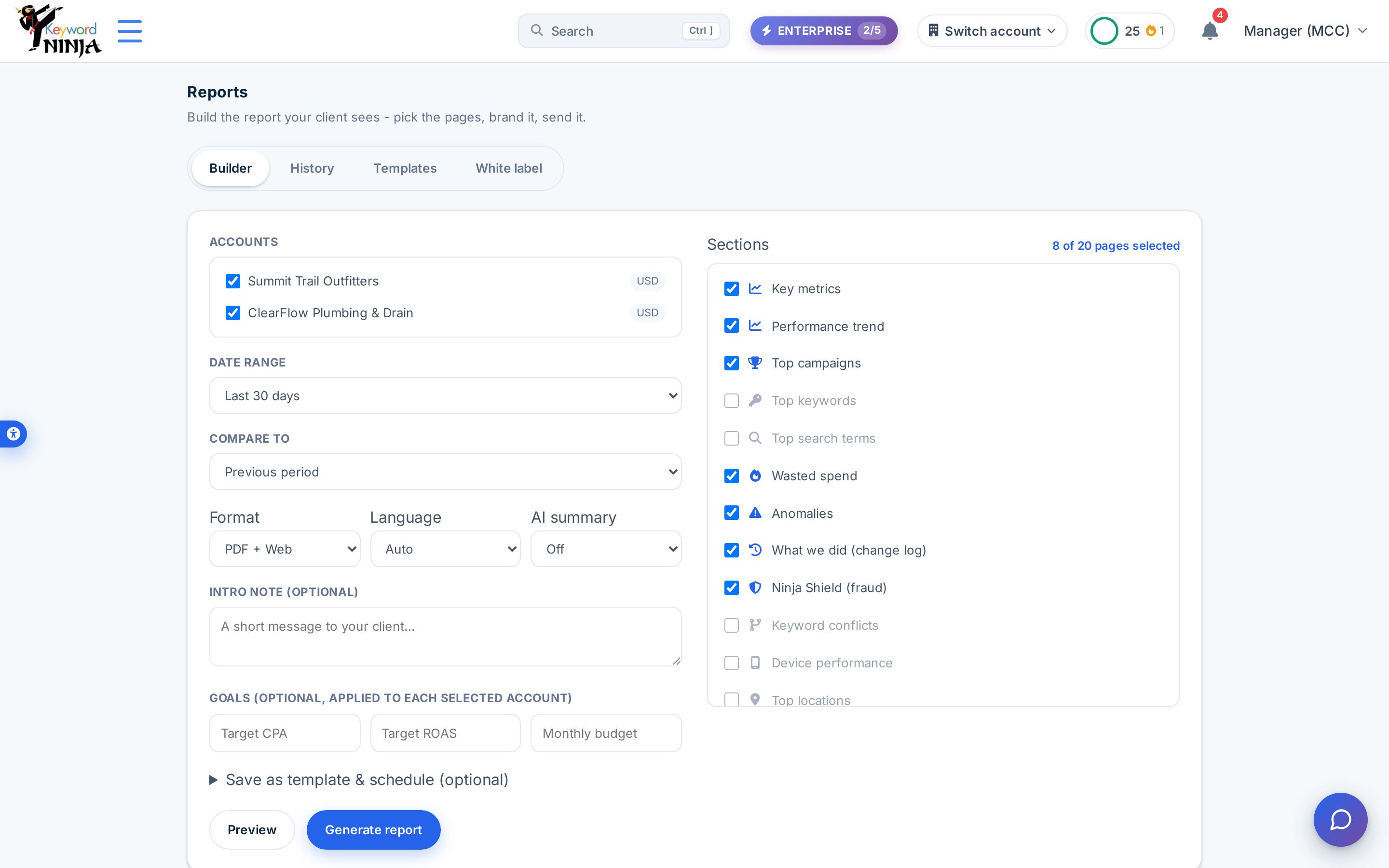
On the Builder tab (the default view): check which of your accounts to include, pick a date range (with an optional comparison period), choose the output format and language, and select which of the 20 available pages to include - key metrics, performance trend, top campaigns/keywords/search terms, wasted spend, anomalies, a change log, Ninja Shield fraud stats, keyword conflicts, device performance, top locations, and more. Add an optional intro note and per-account goals (target CPA/ROAS/monthly budget) if you want them reflected in the report.
2. Preview before you generate
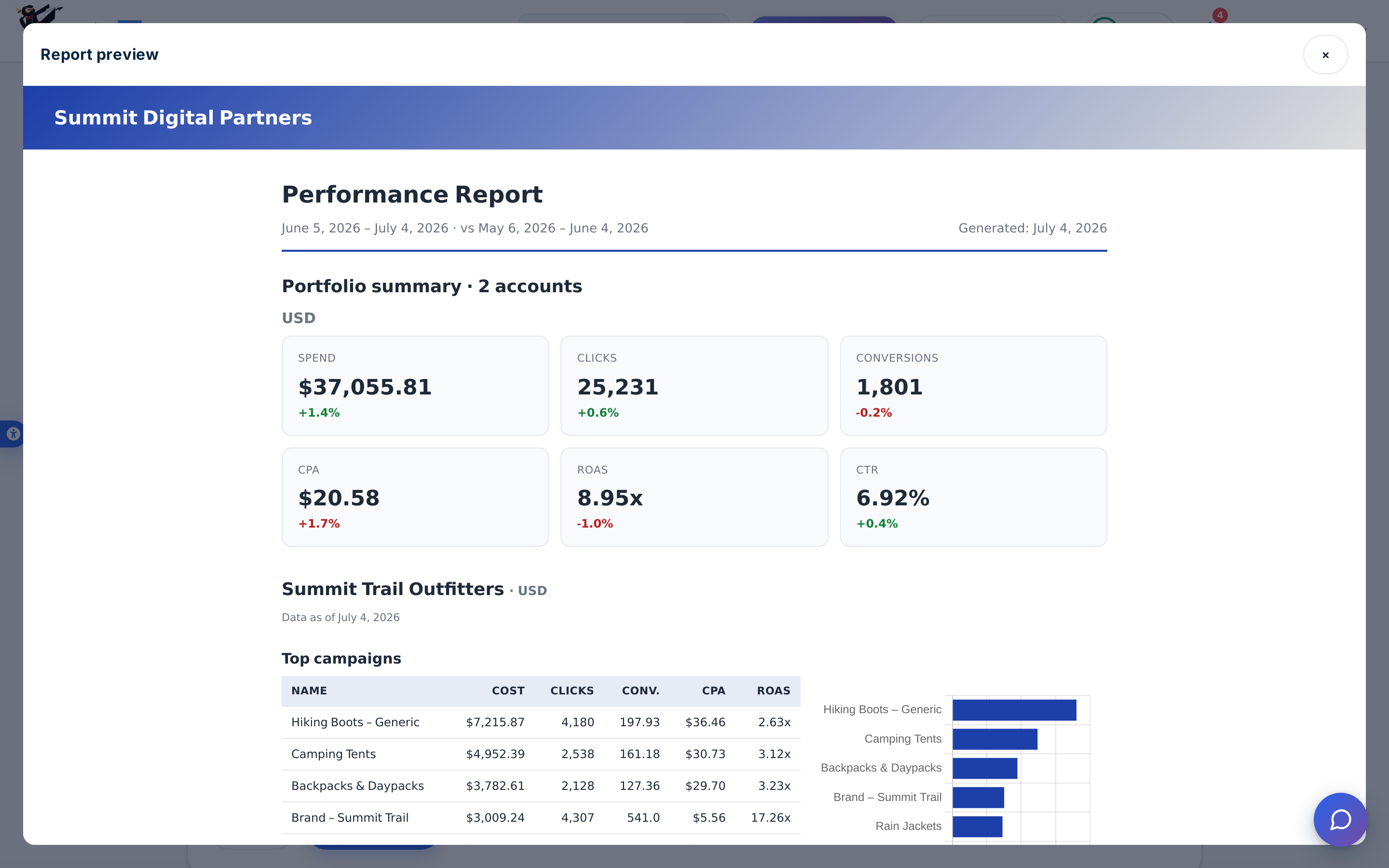
Click Preview to render the report instantly in a modal - no PDF is created and nothing is saved, so you can freely adjust sections and re-preview. This is also where you’ll see your white-label branding applied, if you’ve set it up.
3. Generate the PDF
Click Generate report to actually render and save it. Generation runs in the background - the page shows a status message while it works, then Download and Open links once it’s ready. Every generated report also lands in History.
4. Check History
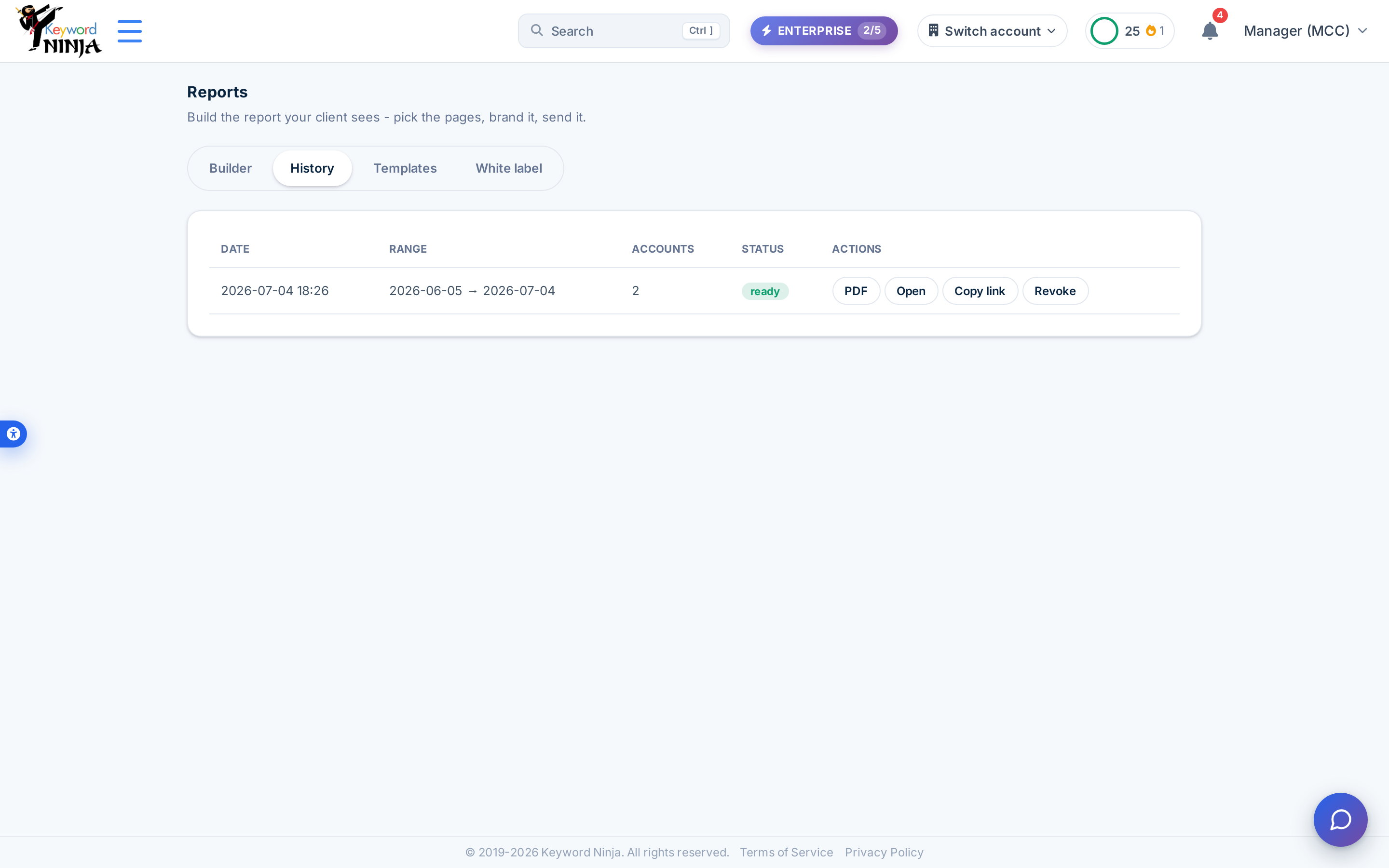
The History tab lists every report you’ve generated - date, date range, account count, status, and actions to download the PDF, open it in-browser, copy a public share link, or revoke a share.
5. Save a template and schedule it
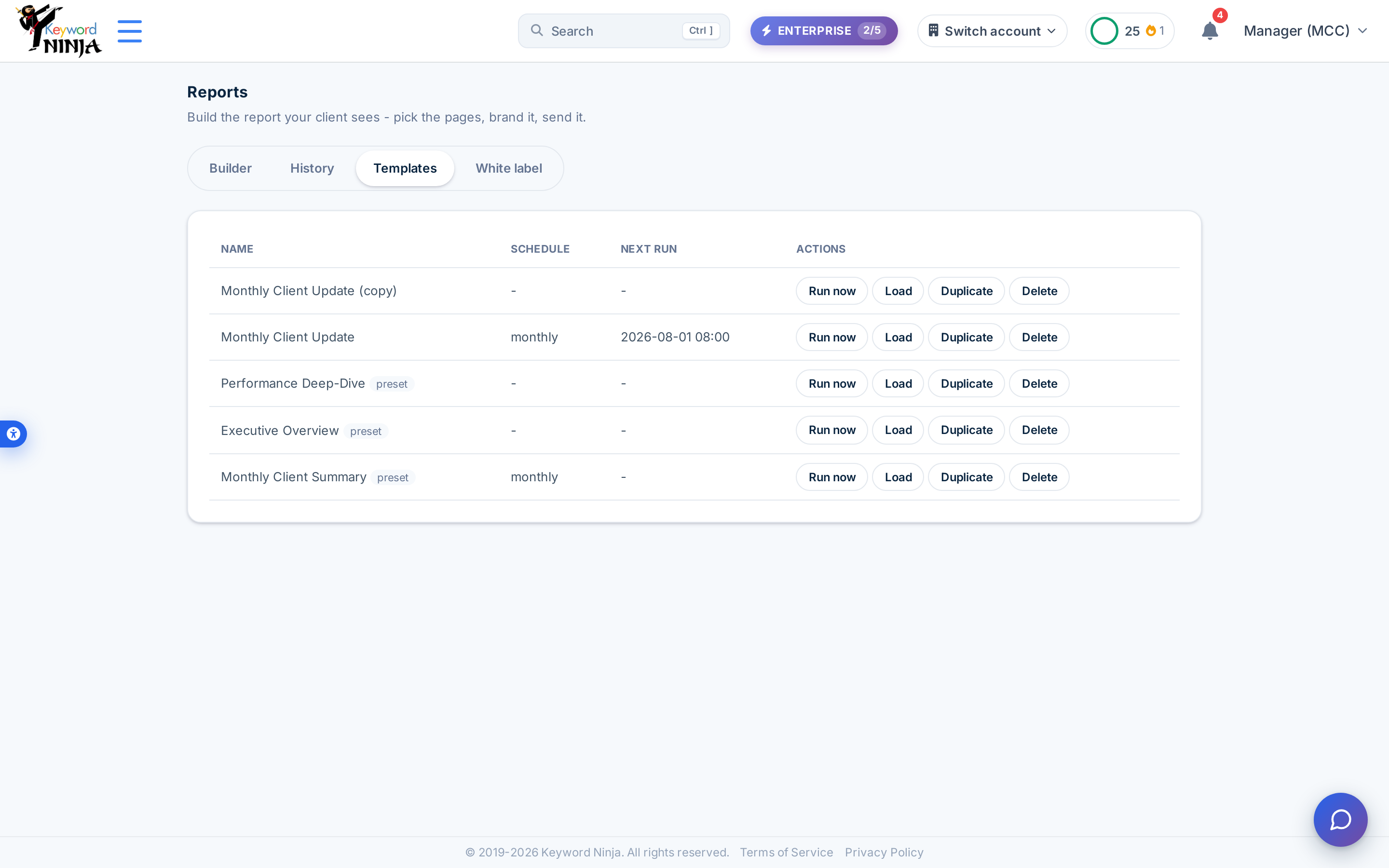
Back on the Builder tab, expand Save as template & schedule to save your current configuration as a reusable template - optionally with a recurring schedule (weekly or monthly, at a chosen day/hour), recipient emails, and a custom subject line. Saved templates appear on the Templates tab, where you can run one on demand, load it back into the builder, duplicate it, or delete it. Three presets (Monthly Client Summary, Executive Overview, Performance Deep-Dive) are seeded automatically the first time you open this tab.
6. Brand it with White label
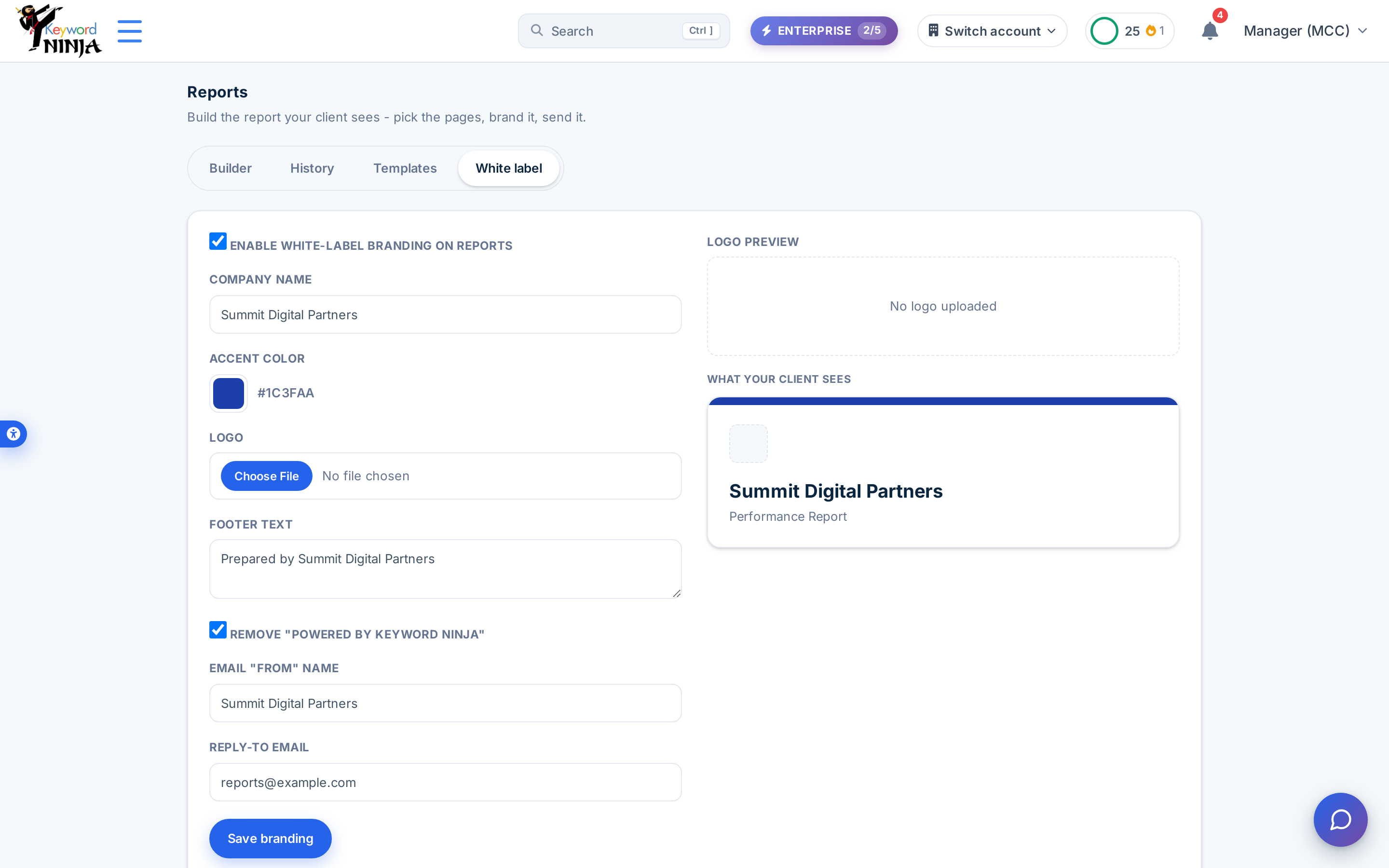
On the White label tab, turn on white-label branding and set your company name, an accent color, a logo, footer text, and the email “from” name and reply-to address your clients will see - and optionally remove the “Powered by Keyword Ninja” line entirely. A live cover-page mock on the right updates as you type, so you can see exactly what your client will see before saving.
Tips & best practices
- Preview liberally, generate sparingly - preview is instant and free of any saved state; generating actually renders and stores a PDF, so use preview while you’re still deciding what to include.
- A shared report link is public but not discoverable - anyone with the link can view it, but it’s marked
noindexand isn’t linked from anywhere public. Revoke it from History once a client no longer needs access. - Set up White label before your first client-facing report - it applies retroactively to previews and new generations, so there’s no reason to send an un-branded report if you manage client accounts.
- Scheduled templates run in the background - a template with a weekly or monthly schedule (not “Manual only”) generates and can email itself without you opening the page; use recipients + a custom subject to make sure it lands where you expect.
- Duplicating a template resets its schedule - a duplicate is created as “unscheduled” so you can tweak it before turning scheduling back on, rather than accidentally double-sending.
Troubleshooting & FAQ
I don’t see a White label tab. It only appears if your plan includes white-label branding specifically - a separate entitlement from Reports access itself.
My report has been “Generating…” for a while. Generation runs in the background and can take longer for large date ranges or many accounts/sections; the page polls automatically and will show Download/Open links once it’s ready.
Some labels on the Hebrew site show in English. The page chrome (tabs, field labels, buttons) is fully translated, but the individual report section names and a few table headers are not yet localized and will always display in English regardless of site language - a known content gap, not a bug.
I revoked a share link by mistake. Generate a fresh share link from that report’s row in History - the underlying PDF is untouched, only the public link changes.
This page requires a plan upgrade. Reports requires PRO or ENTERPRISE; the page shows an upgrade card with a link to Pricing if your current plan doesn’t include it.